Phone Link Not Connecting? Fix Pairing & Sync Issues on Windows
Phone Link Not Connecting? Fix Pairing & Sync Issues on Windows
If your phone is not connecting to Microsoft Phone Link, the pairing process likely failed due to a network issue, permission restriction, account mismatch, or background service interruption.
In most cases, the connection can be restored in just a few minutes by checking a few essential settings and restarting the pairing process correctly.
Start with the quick checks below before reinstalling apps or changing advanced settings.
Quick Fix Checklist (Start Here)
Before trying deeper troubleshooting steps, confirm the basics below.
These simple checks resolve a large percentage of Phone Link connection problems.
Make sure your phone and Windows PC are connected to the same Wi-Fi network (avoid guest or isolated networks).
Sign in using the same Microsoft account on both your computer and your phone.
Turn VPN off temporarily on both devices, as some VPN configurations block device discovery.
Update the Phone Link app from the Microsoft Store on your PC.
Update the Link to Windows app on your phone.
Ensure Bluetooth is turned on if you plan to use calling features.
Allow background activity and required permissions on your phone so syncing can continue.
If your phone still does not connect after confirming the checklist above, continue with the step-by-step fixes below.
Table of Contents
ToggleRestart the Phone Link Connection From Scratch
If your phone still does not connect after checking basic settings, the most reliable fix is to remove the existing pairing and start the setup process again. Connection sessions can become stuck due to cached credentials, expired pairing tokens, network changes, or permission conflicts. Restarting the connection refreshes the secure link between your devices.
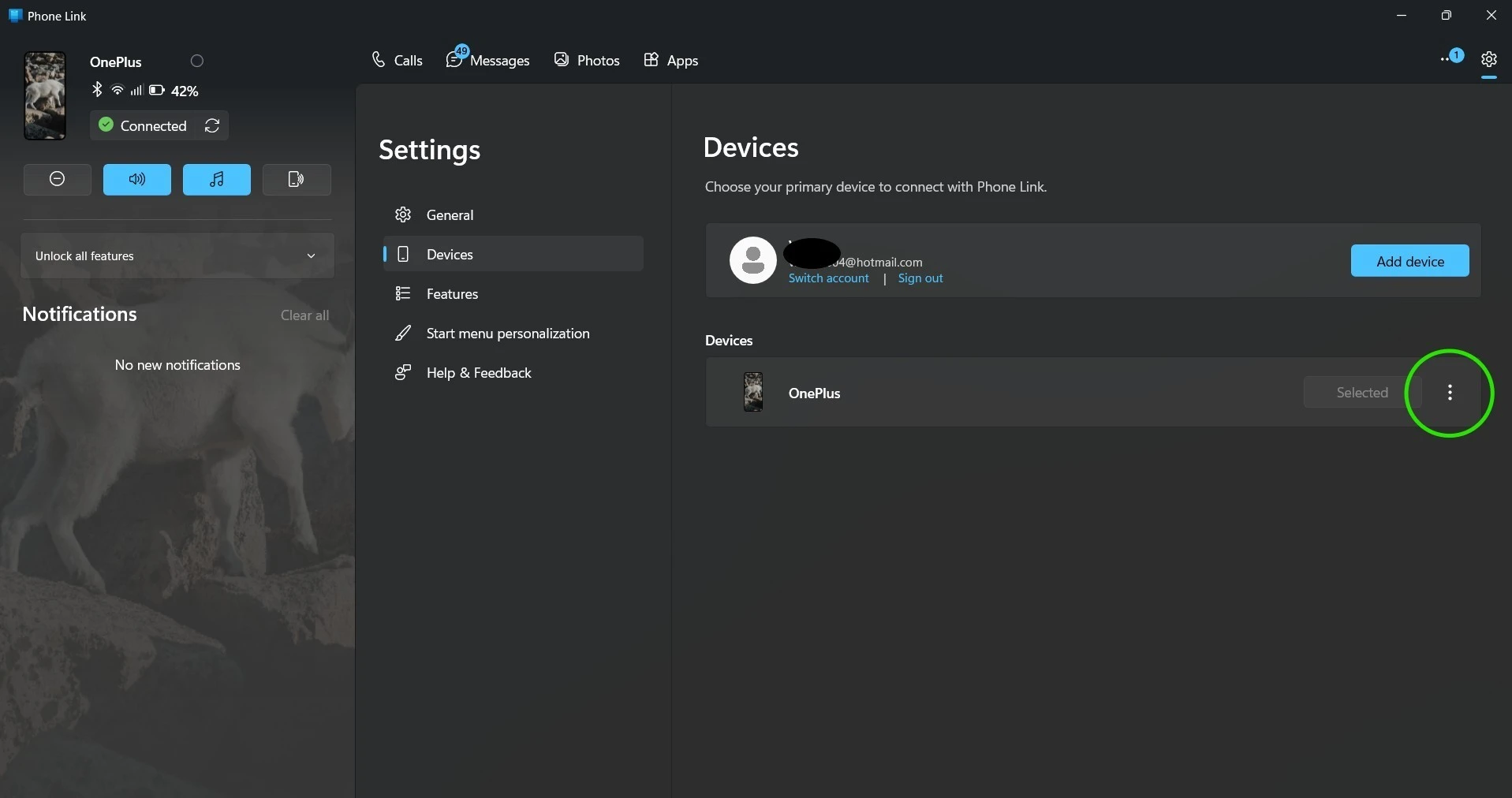
Step 1 — Remove the Phone From Your Windows PC
Open Phone Link on your computer. Go to Settings → Devices and select your connected phone. Choose Remove device or Unlink, then confirm.
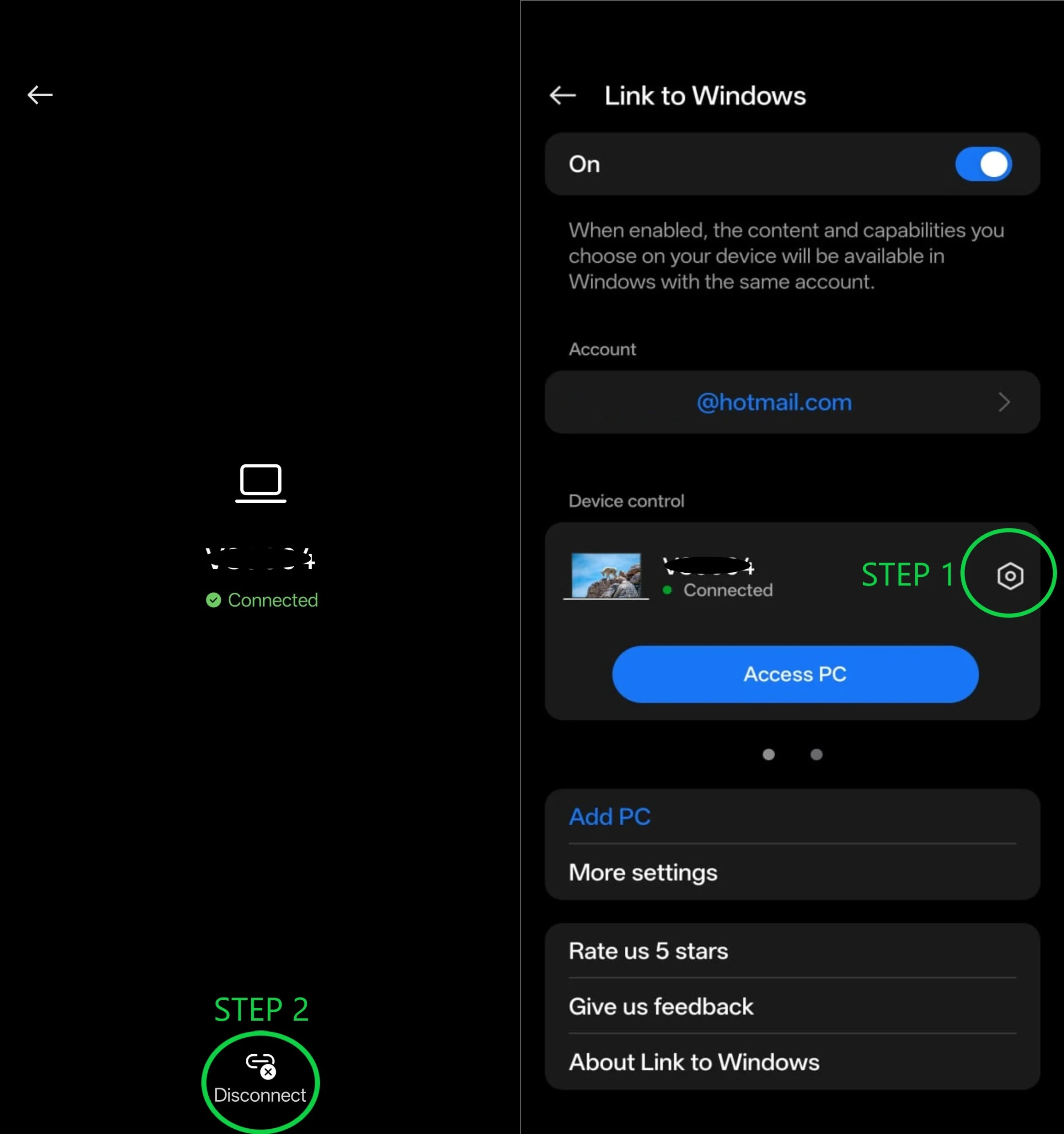
Step 2 — Remove the PC From Your Phone
On your phone, open the Link to Windows app. Locate the connected computer in the device list and remove or unlink it.
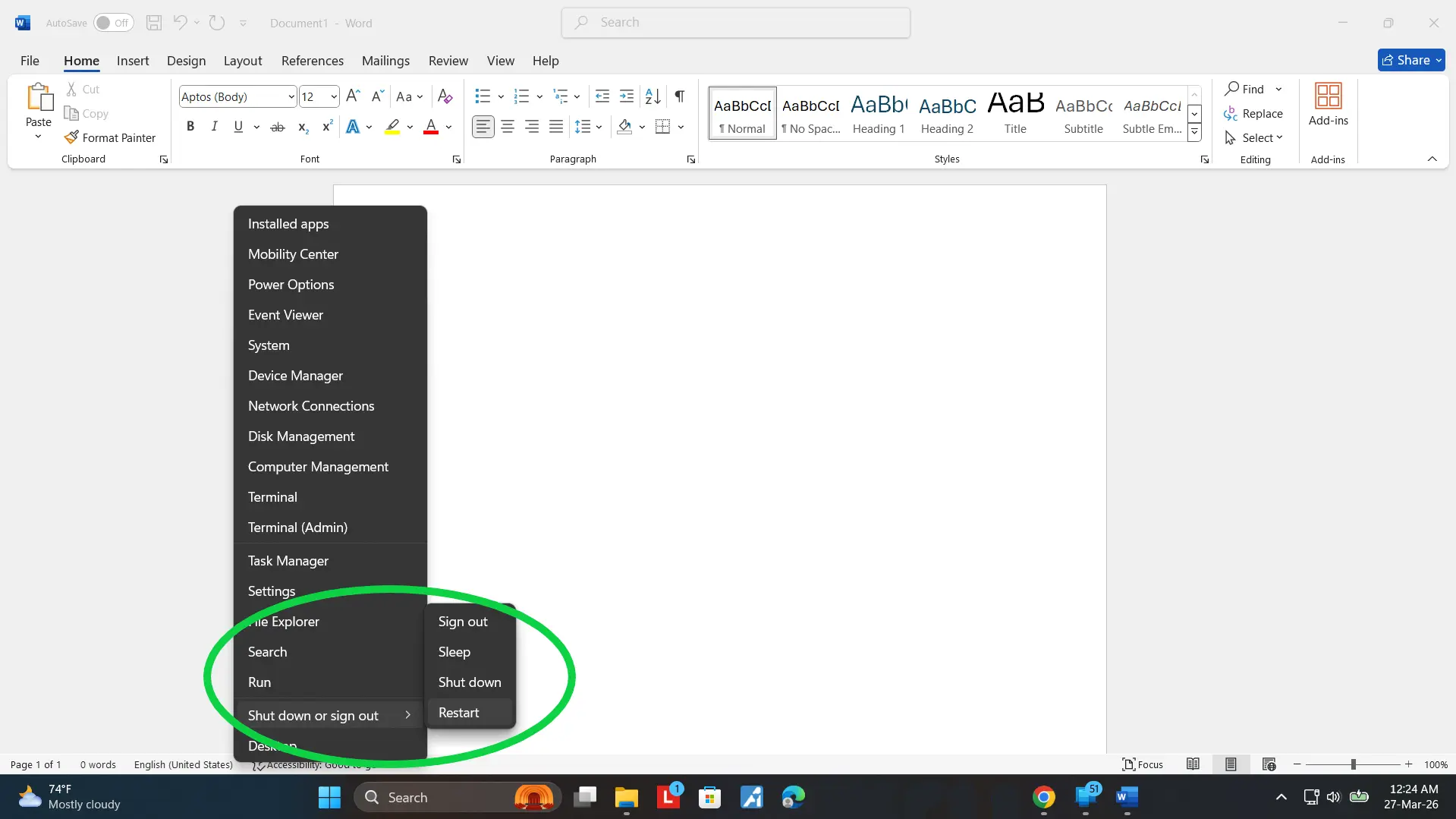
Step 3 — Restart Both Devices
Restart your Windows PC and your phone. This clears temporary background processes that may interfere with pairing.
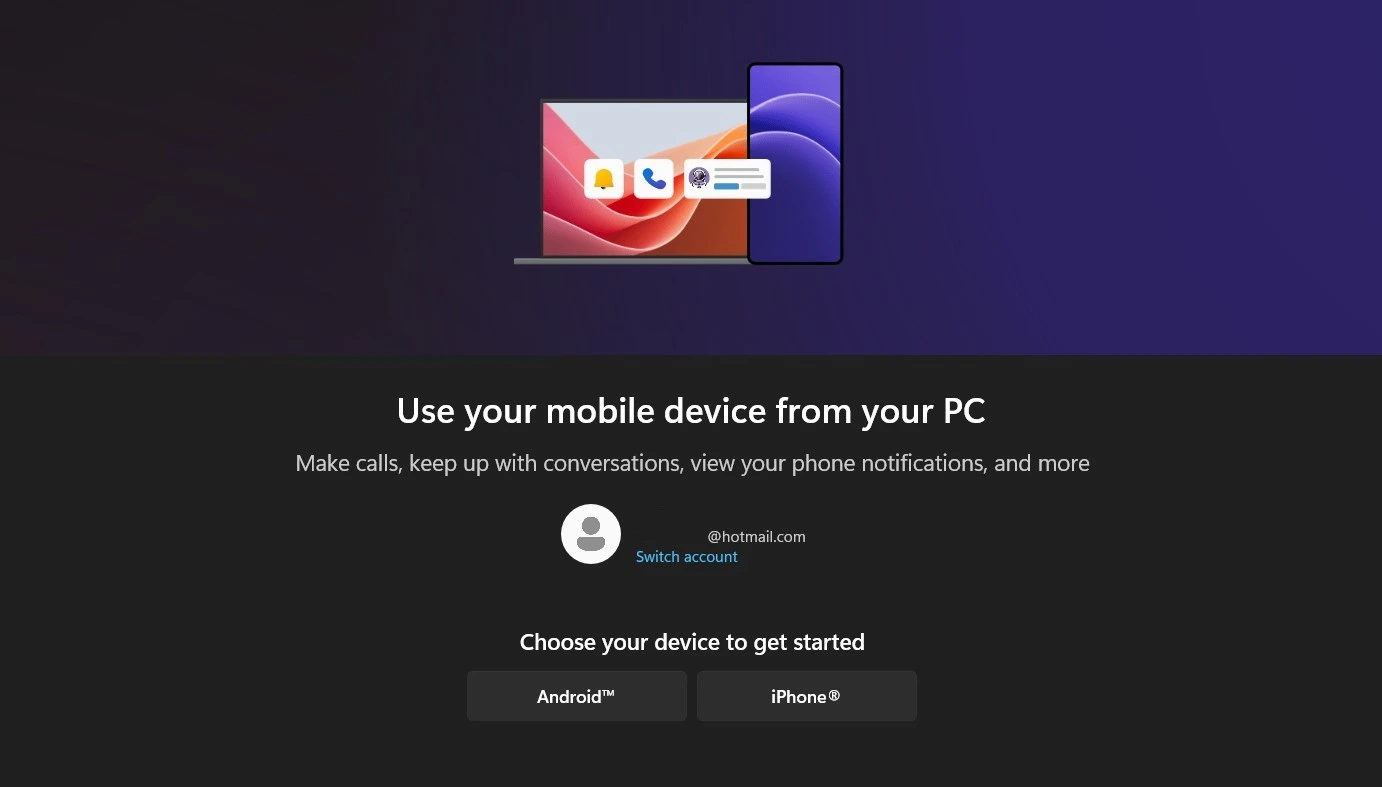
Step 4 — Set Up Phone Link Again
Open Phone Link on your PC and follow the pairing steps again. Scan the new QR code or enter the pairing code when prompted. In many cases, this complete reset restores syncing and allows the devices to connect normally.
Check Network and Device Discovery Settings
Phone Link relies on your phone and Windows PC being able to discover each other over the network.
If discovery fails, pairing may not start or the connection may drop shortly after setup.
Make Sure Both Devices Are on the Same Wi-Fi Network
For best results, connect your phone and computer to the same private Wi-Fi network.
Connection problems often occur when:
one device is using mobile data
one device is connected to a guest network
router isolation or security settings block local device communication
If possible, switch both devices to the same home or office network and try pairing again.
Avoid Guest or Public Networks
Guest Wi-Fi networks frequently restrict communication between connected devices.
Even though internet access works, your phone may not be able to detect your PC.
If you are on a public network (hotel, airport, café), try pairing again later on a trusted network.
Check Router or Firewall Restrictions
Some routers and security software block device discovery or background syncing.
If you recently changed router settings, installed security software, or joined a managed network, this may affect Phone Link.
Temporarily disabling strict network filtering or testing on another network can help confirm whether this is the cause.
Turn Off VPN During Setup
VPN services can route traffic through remote servers, preventing local discovery between your phone and PC.
If pairing fails, turn off VPN on both devices and try the setup process again.
You can usually re-enable VPN after the connection is established.
Make Sure Both Devices Use the Same Microsoft Account
Phone Link requires your Windows PC and phone to be signed in with the same Microsoft account.
If the accounts do not match, pairing may fail or syncing may stop after the initial connection.
Check the Account on Your Windows PC
Open Phone Link and go to Settings → Accounts.
Confirm the email address shown matches the account you intend to use.
If you recently switched accounts on Windows or added a work account, Phone Link may still be linked to the previous profile.
Signing out and signing back in can refresh account syncing.
Check the Account on Your Phone
Open the Link to Windows app and review the signed-in Microsoft account.
If needed, sign out and sign in again using the same account as your PC.
This step often resolves issues where devices appear paired but do not sync messages, notifications, or calls.
Remove Old or Cached Connections
If you previously paired the same phone or computer using another account, cached sessions may interfere with the new connection.
Removing the device and starting pairing again helps establish a clean session.
Work or School Accounts May Have Restrictions
Some organisational Microsoft accounts limit syncing features or block Phone Link entirely.
If you are using a managed account and connection keeps failing, try pairing with a personal Microsoft account or contact your IT administrator.
Required Permissions Must Be Allowed for Phone Link to Work
During setup, your phone asks for several permissions such as notifications, messages, contacts, and background activity.
If any of these permissions are denied, the pairing process may complete but syncing will fail or stop unexpectedly.
This can make it seem like Phone Link is broken even though the connection itself exists.
Fix Permissions on Android Devices
Open Settings → Apps → Link to Windows → Permissions.
Confirm that the following permissions are allowed:
• Notifications
• SMS / Messages
• Contacts
• Phone / Calls
• Storage or Photos
Also check Battery → Unrestricted / Allow background activity.
Some Android devices aggressively close background apps.
If Link to Windows is restricted, syncing may disconnect randomly.
After changing permissions, restart both your phone and PC.
Fix Permissions on iPhone
On iPhone, Phone Link relies heavily on Bluetooth communication and system notification access.
Open Settings → Link to Windows and confirm:
• Bluetooth is enabled
• Notifications are allowed
• Contacts access is granted
If pairing still fails, remove the Bluetooth pairing on both devices and connect again.
Windows Permission or Privacy Settings
On your PC, open Settings → Privacy & Security.
Confirm that Phone Link can access:
• Notifications
• Bluetooth
• Background apps
Corporate security policies or privacy tools may block these silently.
When Permission Problems Cause Pairing Failure
You may notice symptoms such as:
• QR pairing completes but nothing syncs
• Messages never appear
• Calls option stays disabled
• Connection drops after a few minutes
Correcting permissions usually resolves these behaviors immediately.
If permissions appear correct but features still fail after pairing, you may need deeper guidance on how Phone Link permissions behave across Android, iPhone, and Windows environments.
👉 See: Phone Link Permissions Guide
QR Code or Pairing Code Not Working
If your phone cannot complete pairing with Phone Link, the issue may occur during the QR scanning or manual pairing code step.
This usually happens due to temporary session problems, permission restrictions, or visibility issues between the devices.
Why QR Pairing Fails
Common causes include:
The QR session expired after being open too long
Camera permission is not allowed for the Link to Windows app
Screen glare or low brightness prevents accurate scanning
The phone camera is not focusing properly
The Phone Link app was minimized or refreshed during setup
How to Fix QR Code Scanning Problems
Try the following steps:
Close Phone Link on your PC and reopen it to generate a new QR code
Increase your PC screen brightness to make the code easier to scan
Clean your phone camera lens and hold the device steady
Ensure camera permission is enabled for Link to Windows
Keep both devices close together during scanning
Most users can successfully pair after restarting the QR session.
Use Manual Pairing Code Instead
If scanning still fails, you can complete setup using the manual pairing option.
On your PC:
In Phone Link, select Continue without QR code
An 8-digit pairing code will appear
On your phone:
Open the Link to Windows app
Choose the option to enter pairing code manually
Type the code shown on your PC
This method creates the same secure connection without using the camera.
If pairing continues to fail even after using the manual code, continue to the next section to check app or installation issues.
App or Microsoft Store Problems Preventing Phone Link Connection
In some cases, Phone Link may fail to connect because the app is outdated, corrupted, or unable to launch properly from the Microsoft Store.
Connection issues caused by software problems can appear similar to pairing failures but require different fixes.
Signs the App or Store May Be Causing the Issue
You may notice:
Phone Link does not open when clicking aka.ms/PhoneLink
The Microsoft Store opens but the install or update does not start
Phone Link crashes or freezes during setup
The Link to Windows app on your phone shows connection errors
The apps on PC and phone are running mismatched versions
How to Fix Phone Link App Issues on Windows
Try these steps:
Open the Microsoft Store → Library → Check for updates
Update Phone Link if an update is available
Restart your PC after the update completes
If Phone Link still behaves incorrectly:
Go to Settings → Apps → Installed apps → Phone Link
Select Advanced options → Repair, then Reset if needed
This refreshes the app configuration without removing your system files.
Reinstall Phone Link if Problems Continue
If repair does not resolve the issue:
Uninstall Phone Link from Windows
Restart your computer
Open the Microsoft Store and install Phone Link again
After reinstalling, complete the pairing process from the beginning.
Update or Reinstall Link to Windows on Your Phone
On Android or iPhone:
Open the app store on your device
Search for Link to Windows (Microsoft Corporation)
Update the app or reinstall it if connection problems persist
Keeping both apps fully updated ensures compatibility during pairing and sync.
If the connection still cannot be completed after reinstalling the apps, the problem may be caused by device management restrictions or organizational policies. Continue to the next section.
Work or School Device Restrictions Blocking Phone Link
If you are using a company-managed or school-issued computer or phone, Phone Link may be blocked by administrative policies.
These restrictions are commonly applied in corporate or education environments to protect sensitive data and control device connectivity.
Signs Your Device Is Managed by an Organization
You may notice:
A message stating “This feature is managed by your organization”
Phone Link settings appear greyed out or unavailable
Pairing starts but cannot complete
Notifications or messaging features remain disabled after setup
The Microsoft Store cannot install or update Phone Link
These limitations are controlled through enterprise device management systems such as Microsoft Intune or Group Policy.
Why Phone Link May Be Blocked
Organizations often disable phone-to-PC linking to:
Prevent unauthorized data transfer
Restrict SMS or call access from work devices
Control Bluetooth and background communication features
Enforce network security rules
Maintain compliance with internal IT policies
Even if the app is installed, certain permissions or services required for pairing may be disabled.
What You Can Do
If you suspect device management restrictions:
Try setting up Phone Link on a personal Windows PC instead
Check whether your phone is also enrolled in work profile or device management
Contact your IT administrator and ask if Phone Link is allowed
Ask whether Bluetooth pairing or device sync policies can be enabled
In many cases, only the organization can change these settings.
If your device is not managed and connection problems still continue, proceed to advanced recovery steps in the next section.
When Phone Link Still Won’t Connect (Advanced Recovery Steps)
If pairing continues to fail after checking network, account, permission, and app issues, the connection environment itself may need to be rebuilt.
These advanced recovery steps help reset hidden configuration problems that can block Phone Link from completing the pairing process.
Reset Phone Link App on Windows
A corrupted local configuration can prevent proper pairing.
To reset the app:
Open Settings → Apps → Installed apps → Phone Link
Select Advanced options
Click Repair first
If the issue continues, click Reset
This clears stored pairing data and restores default app behavior.
Remove All Previous Pairing Records
Old or incomplete pairing sessions can interfere with new connections.
On your PC:
Open Phone Link
Go to Settings → Devices
Remove any previously connected phones
On your phone:
Open Link to Windows
Unlink or remove the connected PC
Restart both devices before attempting setup again.
Check for Router Isolation or Network Restrictions
Even when both devices appear connected to the same Wi-Fi network, certain router settings can prevent them from discovering each other.
Features such as AP Isolation or Client Isolation block communication between devices on the same network.
If pairing repeatedly fails:
Try connecting both devices to a different Wi-Fi network
Or temporarily use a mobile hotspot
If using a home router, check advanced wireless settings for isolation features
Disabling these restrictions often restores pairing immediately.
Remove Conflicting Phone Linking Apps
Other phone-to-PC connection apps can interfere with Phone Link’s background services.
Examples include:
Intel Unison
Samsung Flow
OEM connection utilities
If multiple linking apps are installed:
Uninstall or disable them temporarily
Restart your PC and phone
Attempt pairing again using only Phone Link
This prevents connection conflicts and improves pairing reliability.
Update Windows and Restart Background Services
Outdated system components may block communication between devices.
To update:
Press the Windows key → type “Check for updates”
Install all available updates
Restart your PC after updates complete
Keeping Windows fully updated ensures Phone Link services and connection protocols function correctly.
If pairing continues to fail even after resetting the connection, updating apps, and testing another network, device compatibility conditions may be preventing stable communication.
👉 Check supported environments here: Phone Link Compatibility & System Requirements
Device Name Changes Can Break Pairing
If you recently renamed your Android device or Windows PC, previously stored pairing records may no longer match.
To fix this:
Remove the existing pairing from both devices
Restart both devices
Complete the setup process again
Re-establishing the connection resolves identity mismatch issues.
If Phone Link still does not connect after these recovery steps, continue with the related troubleshooting guides below to isolate feature-specific problems.
More Phone Link Fix Guides
If Phone Link still isn’t connecting or specific features continue to fail after pairing, the detailed guides below can help isolate the exact cause.
👉 Phone Link Notifications Not Working — fix alert sync and delayed notification issues
👉 Phone Link Permissions Guide — enable required access on Android, iPhone, and Windows
👉 Phone Link Compatibility — check supported devices, environments, and feature limits
If you originally searched for aka.ms/PhoneLink while trying to connect your phone to a Windows PC, you can return to the main recovery page below.