Skip to content

aka.ms/PhoneLink Not Working? Fix It on Windows 10 & Windows 11

aka.ms/PhoneLink Not Working? Fix It on Windows 10 & Windows 11

🔗 Open Phone Link Now: Visit aka.ms/PhoneLink

If you were redirected to www.aka.ms/PhoneLink but your phone still isn’t connecting to your Windows PC, the pairing process likely failed at one of a few common steps.

Most connection issues happen because:

  • Both devices are not on the same Wi-Fi network

  • The Microsoft account doesn’t match on both devices

  • Required permissions were not granted

  • A background service or security setting is blocking the connection

The good news: in most cases, the issue can be fixed in a few minutes.

Start with the quick checks below before moving to the full setup guide.

Quick Fix Checklist (Start Here)

Before reinstalling anything, confirm these basics:

  1. Both devices are connected to the same Wi-Fi network (not a guest network).

  2. You are signed in with the same Microsoft account on both your PC and your phone.

  3. VPN is turned off temporarily on both devices.

  4. Phone Link is updated from the Microsoft Store.

  5. The Link to Windows app is updated on your phone.

  6. Bluetooth is turned on (required for calling features).

If everything above is correct and it still isn’t working, continue below.

Remove Device and Start Fresh (Recommended for Persistent Issues)

  1. On your PC, open Phone Link → Settings → Devices → Remove phone.

  2. On your phone, remove the connected PC from Link to Windows.

  3. Restart both devices.

  4. Complete setup again as a new pairing.

This refreshes the secure connection and resolves most repeated pairing failures.

How to Set Up Phone Link (Step-by-Step)

✨ If you have never set up Phone Link before, follow the steps below. | 🔄 If you previously attempted setup and it failed, first remove your device inside Phone Link and start fresh before continuing. | ⏱️ Most users complete setup in under 5 minutes.

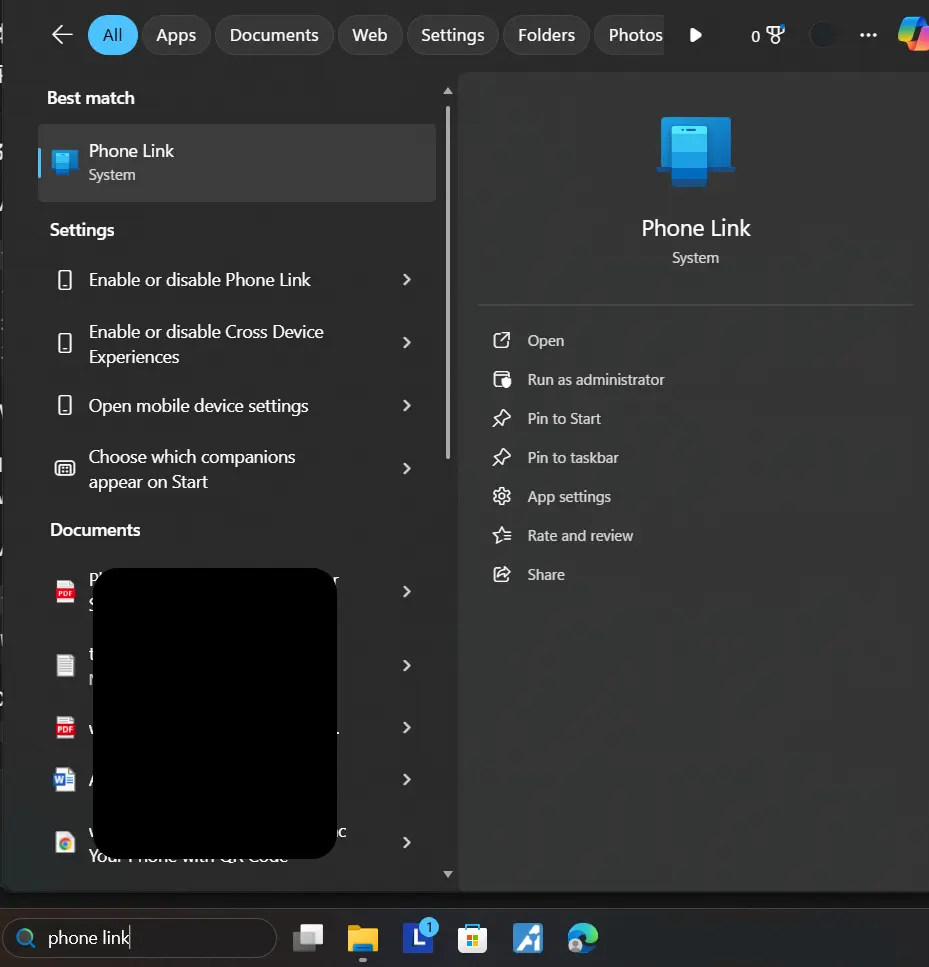
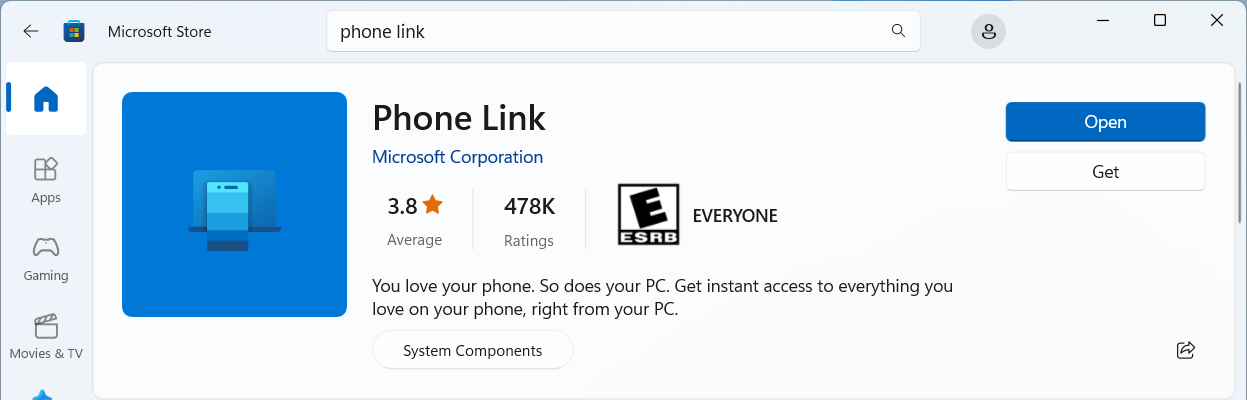
⌨️ Press the Windows key. | 🔎 Type Phone Link. | ↩️ Press Enter. | 🌐 If it doesn’t open, visit: www.aka.ms/PhoneLink from your PC browser to install or launch the app.

How to identify Microsoft Phone Link in Windows store

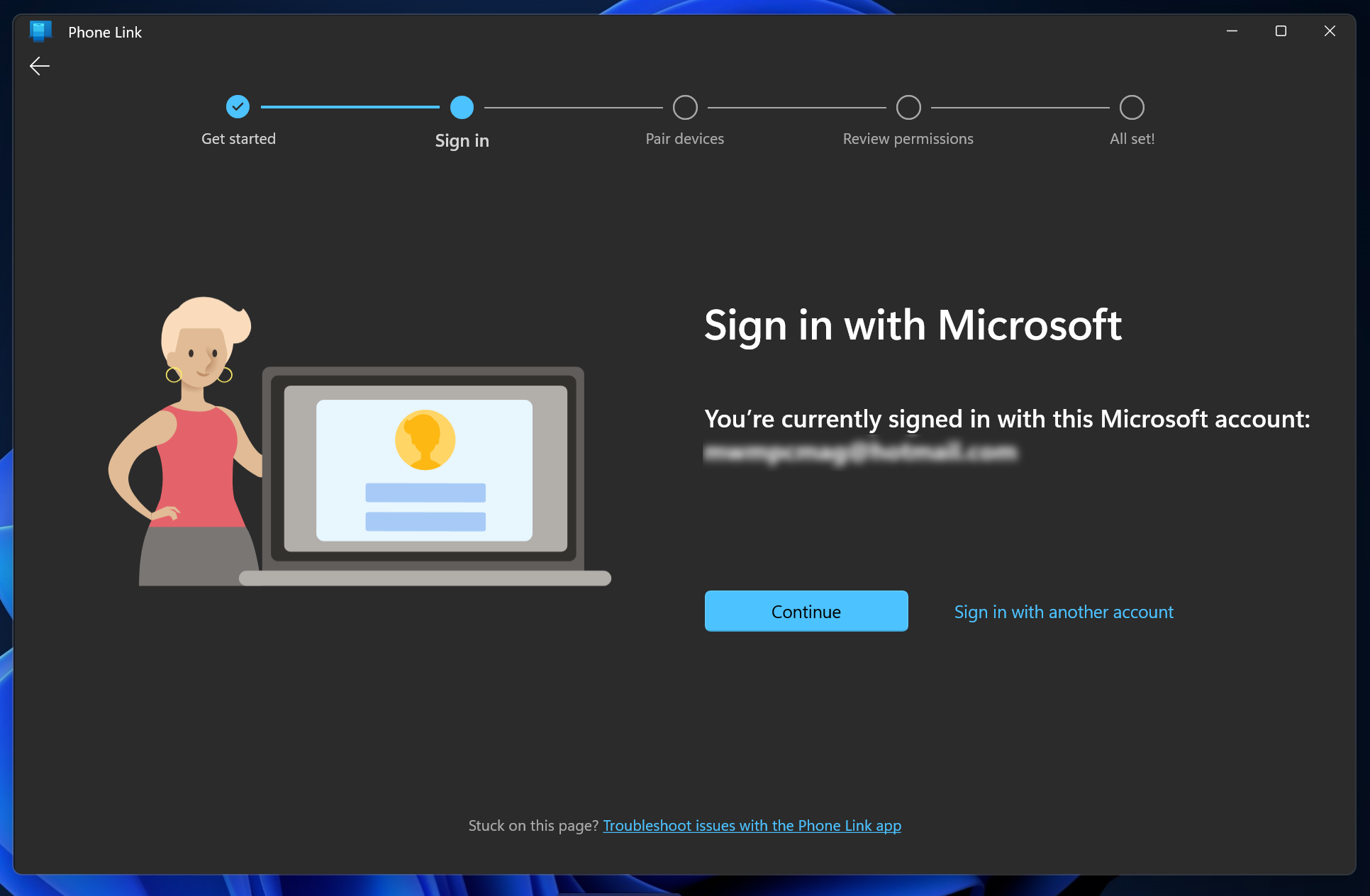
👤 Sign in using your Microsoft account. | ⚠️ Make sure this is the exact same account you will use on your phone.

sign in with microsoft, exact screenshot, sign in with the same Microsoft account here

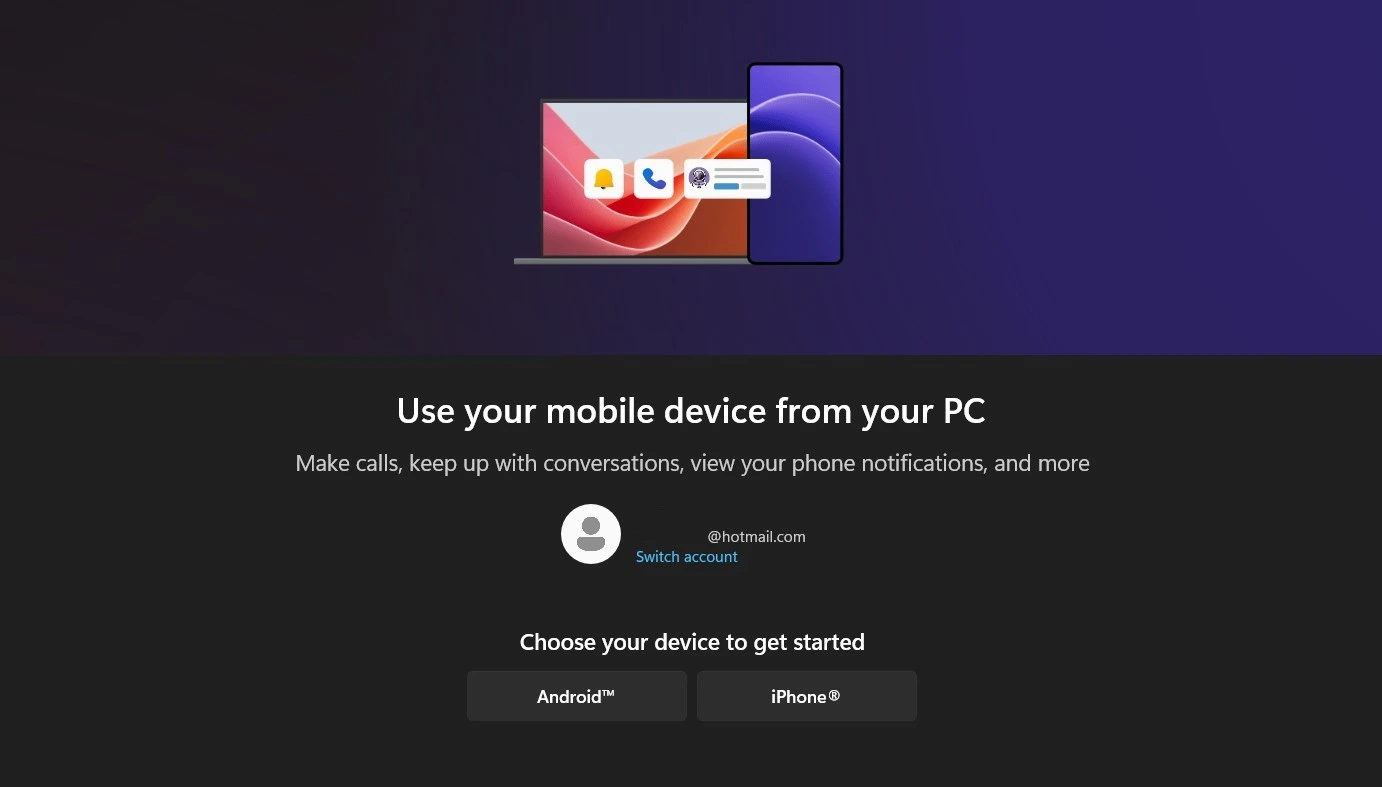
📱 Select: Android or iPhone. | 🖱️ Then click Continue.

choose device type in phone link

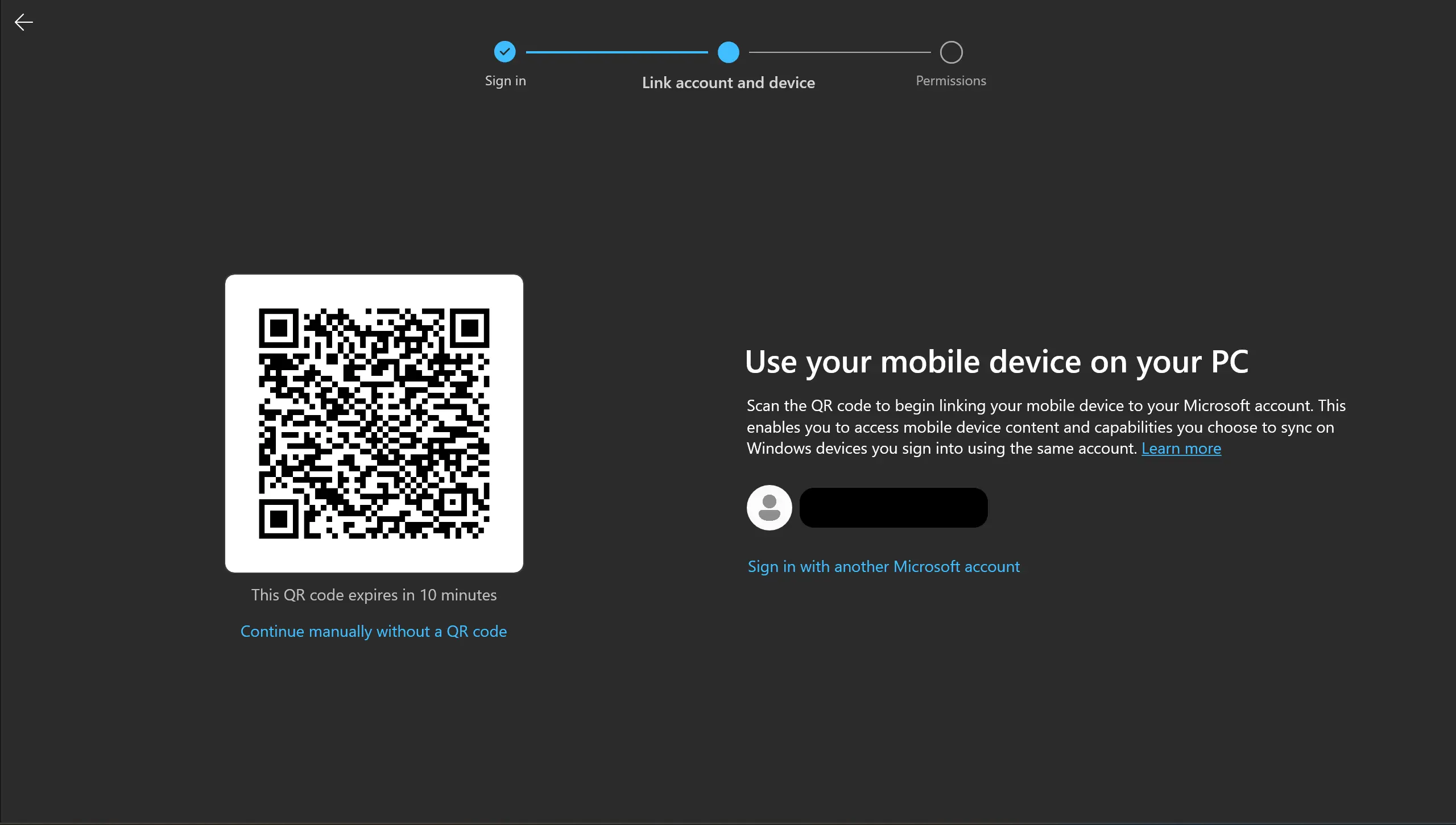
🖥️ Phone Link will show a QR code on your PC screen. | ⏳ Keep this screen open. | 📲 You will scan this from your phone.

phone link app showing QR code to be scanned from the phone to link or pair devices

📲 NOW COMPLETE SETUP ON YOUR PHONE | ✨ If your device doesn’t already have it installed: | 📥 Open Google Play Store. | 🔎 Search for Link to Windows (Microsoft Corporation). | ✅ Install and open the app. | 💡 Many Samsung and HONOR devices have it preinstalled.

Link to windows searched on play store showing result of the app on top

📲 Open Link to Windows. | 👤 Sign in using the same Microsoft account as your PC.

sign in with microsoft, exact screenshot, sign in with the same Microsoft account here

💬 When prompted: “Is there a QR code on your PC?” | ✅ Tap Yes. | 📷 Allow camera access. | 🎯 Point your phone camera at the QR code. | ⏳ Hold steady for a few seconds. | ✨ Verification may take 5–10 seconds. This is normal.

Scanning QR code to pair smartphone with Windows PC using Phone Link

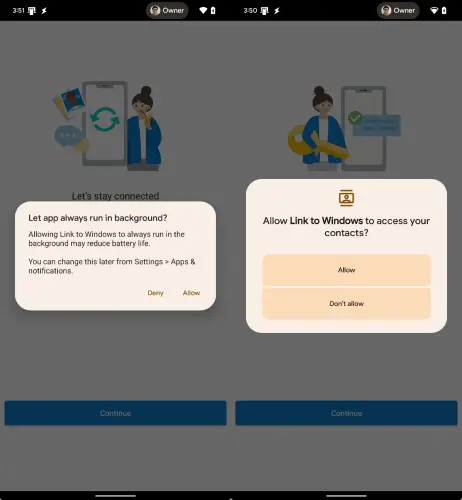
🔓 Allow the following permissions when prompted: | 📲 Notifications, Messages (SMS), and Contacts. | 🖼️ Photos, Calls, and Background activity. | ⚠️ If you deny a permission, some features will not work. | ⚙️ You can adjust permissions later in your phone’s settings if needed.

Permissions granting

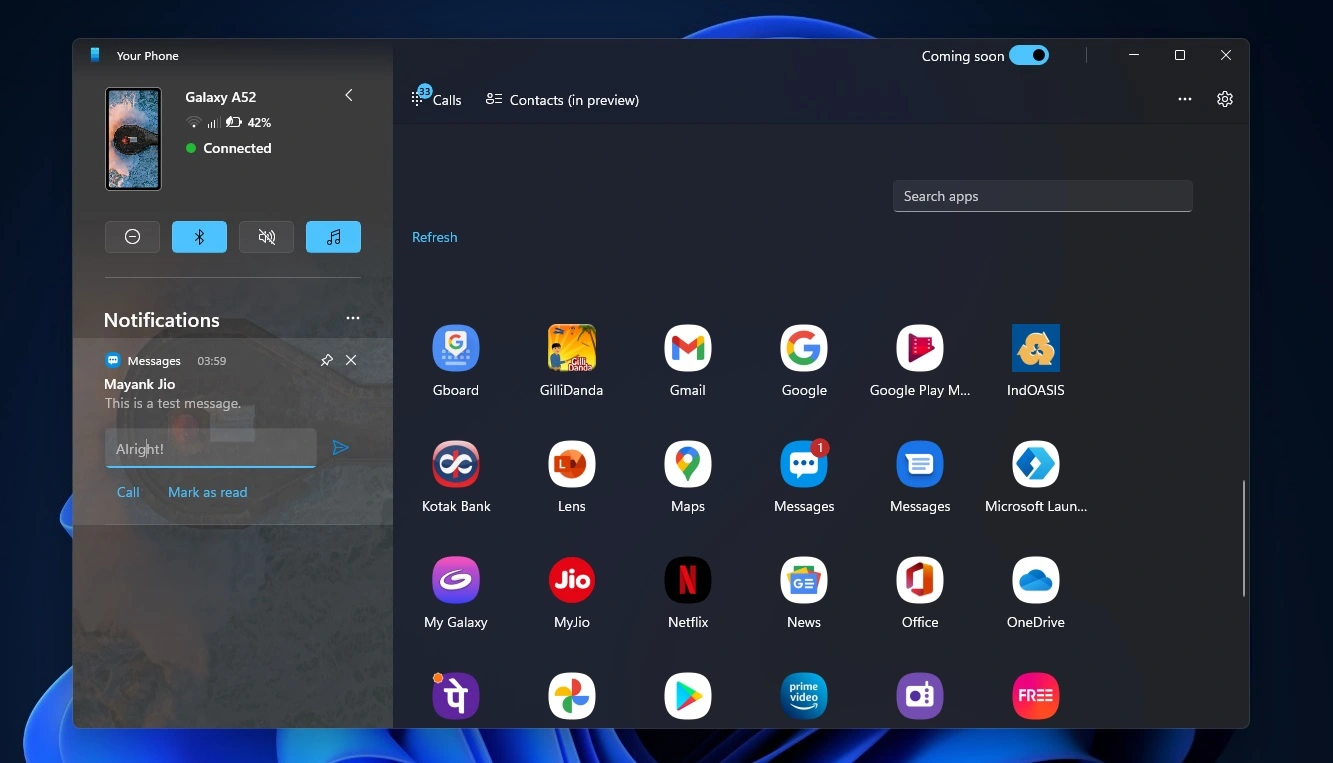
✨ After setup completes, your phone will appear inside Phone Link on your PC. | 🧪 Test it: Send yourself a text message. | 💬 It should appear on your PC within seconds.

Microsoft Phone Link app dashboard on Windows 11 PC

You can also connect your phone to more than one Windows PC.

  • Can Phone Link Connect to Multiple PCs?

iPhone Setup Notes

On iPhone, Phone Link supports:

  • Messages (limited)

  • Calls (limited)

  • Notifications (limited)

App mirroring and full integration are not available on iOS.

Follow the in-app instructions shown on your PC during setup.

Simple Setup Guide (Quick Version)

If you prefer very simple instructions, follow these steps:

  1. Press the Windows key.

  2. Type Phone Link.

  3. Open the app.

  4. On your phone, open Link to Windows.

  5. Scan the QR code shown on your PC.

  6. Tap Allow on each permission screen.

Windows 11 Start menu showing Phone Link as first result

Common Problems and Solutions

Below are the most frequent connection issues and how to resolve them.

QR Code Won’t Scan

Why it happens:

  • Screen glare

  • Camera permission disabled

  • Expired pairing session

Fix:

  1. Increase your PC screen brightness.

  2. Clean your phone camera lens.

  3. Close and reopen Phone Link on your PC to generate a new QR code.

  4. Make sure camera permission is allowed for Link to Windows.

The options on Link to Windows that allows to start pairing through sign in microsoft account or scan the qr code on pc to skip

Devices Won’t Pair

Why it happens:

  • Devices are not on the same Wi-Fi network

  • Microsoft accounts do not match

  • Previous pairing session is still cached

Fix:

  1. Confirm both devices are on the same Wi-Fi network (not guest Wi-Fi).

  2. Verify you are signed in with the same Microsoft account.

  3. Remove the device from Phone Link and re-pair from scratch.

Notifications Not Syncing

Why it happens:

  • Notification permission disabled

  • Battery optimization blocking background activity

Fix:

On your phone:

  1. Open Settings → Apps → Link to Windows.

  2. Enable Notification access.

  3. Set Battery usage to Unrestricted (Android).

  4. Confirm background activity is allowed.

Restart both devices afterward.

  • Phone Link Notifications Not Working (Fix Guide)

Calls Not Working

Why it happens:

  • Bluetooth not enabled

  • Microphone permission not granted

Fix:

  1. Turn on Bluetooth on both devices.

  2. Confirm they are paired.

  3. Grant microphone and call permissions inside Link to Windows.

Photos or Files Not Syncing

Why it happens:

  • Storage permission denied

  • Weak network connection

Fix:

  1. Enable Photos/Storage permission on your phone.

  2. Confirm both devices are connected to stable Wi-Fi.

  3. Restart Phone Link.

Advanced Fixes (For Persistent Issues)

If the steps above didn’t resolve the issue, try these additional fixes.

Reset App Permissions (Phone)

On your phone:

Settings → Apps → Link to Windows → Permissions

Re-enable:

  • Contacts

  • Messages

  • Calls

  • Photos

  • Notifications

Clear App Cache (Android)

Settings → Apps → Link to Windows → Storage → Clear Cache

Then reopen the app.

Reinstall Both Apps

Uninstall:

  • Phone Link (PC)

  • Link to Windows (Phone)

Restart both devices.

Reinstall and set up again from the beginning.

Launch Phone Link Using Run Command

Try launching directly:

Press Windows Key + R

Type:

ms-phonelink:

Press Enter.

This bypasses browser or Microsoft Store launch issues.

Advanced Fixes for Managed or Work Devices

“This Feature Is Disabled by Your Organization”

This usually means a device management policy is blocking Phone Link.

On personal devices:

  1. Open Registry Editor.

  2. Navigate to:

HKEY_LOCAL_MACHINE\SOFTWARE\Policies\
Microsoft\Windows\PhonePCLinking

  1. If the PhonePCLinking key exists and you understand registry changes, remove it.

  2. Restart your PC.

If your device is managed by your workplace or school, contact your IT administrator.

Phone Link Keeps Crashing (Clean Reinstall via PowerShell)

Try a clean reinstall:

Open PowerShell as Administrator and run:

📋 PowerShell Commands (Copy/Paste):

Get-AppxPackage *PhoneLink* | Remove-AppxPackage
Get-AppxPackage *YourPhone* | Remove-AppxPackage
wsreset.exe

Restart your PC, then open Phone Link again from the Start menu.

Why www.aka.ms/PhoneLink Sometimes Doesn’t Open

The www.aka.ms/PhoneLink address is a Microsoft shortcut. It does not contain the app itself — it simply redirects your browser to launch or install Phone Link on a Windows PC.

If the link appears not to work, one of the following reasons usually explains it.

It Must Be Opened on a Windows PC

The shortcut is designed to launch Phone Link on a Windows computer.

If you open it on an Android phone or iPhone browser, you may see:

  • A help page

  • A generic Microsoft page

  • No visible action

This is normal behavior.

To launch or install Phone Link, open the link from your Windows PC browser.

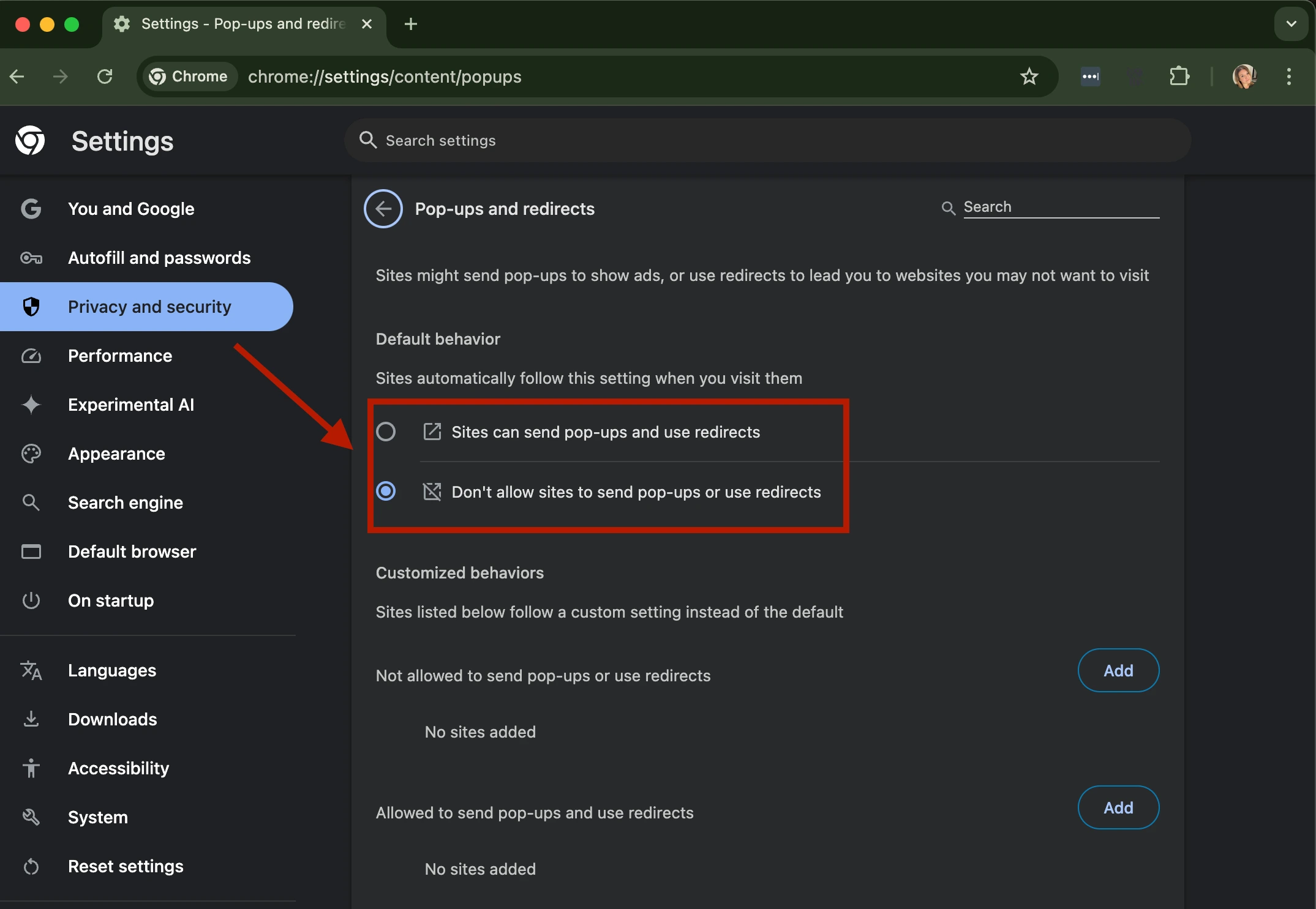
Browser Popup Blocking

When opened on a PC, the link may try to trigger the Phone Link app or Microsoft Store.

If your browser blocks popups, the launch request may fail silently.

To fix this:

  1. Allow popups for microsoft.com.

  2. Reload the page.

  3. Confirm the prompt to open Phone Link.

If it still does not launch, use the Run command method below.

Chrome/ edge popup blocked warning with exact fix path highlighted

Microsoft Store Launch Issues

In some cases, the Microsoft Store may not respond properly when triggered by the shortcut.

If clicking the link does nothing:

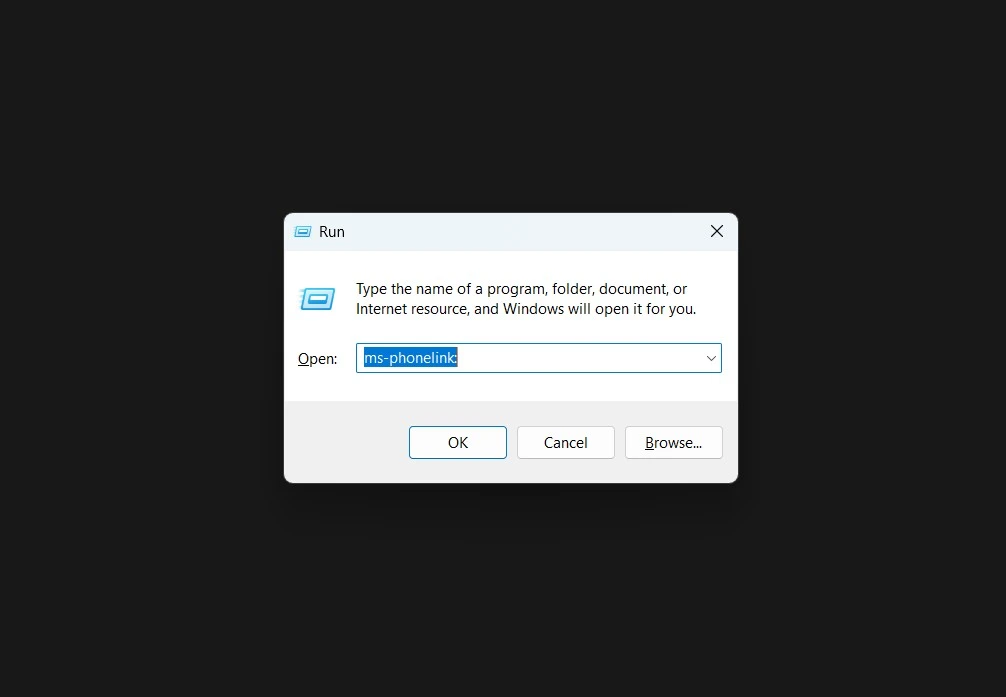
  1. Press Windows Key + R.

  2. Type:
    ms-phonelink:

  3. Press Enter.

This command launches Phone Link directly without using a browser.

If the app is not installed, open the Microsoft Store manually and search for Phone Link.

Win+R dialog with ms-phonelink: command launching Phone Link directly

Device Management Restrictions

On work or school devices, Phone Link may be disabled by policy.

If you see a message stating the feature is blocked by your organization, contact your IT administrator.

Minimum Requirements for Phone Link

Phone Link works on most modern Windows PCs and smartphones, but certain minimum software versions are required for compatibility.

If your device does not meet these requirements, setup may fail or some features may not be available.

Supported Windows Versions

Phone Link is supported on:

  • Windows 10 (October 2022 update or later)

  • Windows 11

Older Windows builds may not include the latest Phone Link features or may require updating through Windows Update.

Supported Android Versions

Android devices must run:

  • Android 8.0 or newer

  • Android 10 or newer is recommended for best compatibility

Many Samsung and HONOR devices include the Link to Windows integration built directly into the system settings.

Other Android devices can install the Link to Windows app from the Google Play Store.

Supported iOS Versions

iPhone support requires:

  • iOS 15 or later

Because of platform restrictions, some Phone Link features are limited on iPhone compared to Android.

Messaging, notifications, and calls are supported, but app mirroring and full device integration are not available.

Platform Compatibility and Limitations

Microsoft Phone Link is designed to connect a Windows PC with a smartphone.

The following limitations are important to understand:

Unsupported Desktop Operating Systems

Phone Link does not work on:

  • macOS

  • Linux

  • Ubuntu

  • ChromeOS (Chrome Book)

The app is built specifically for the Windows ecosystem.

  • Phone Link on Mac (Does It Work?)

  • Phone Link on Chromebook (ChromeOS Compatibility)

No Mobile-to-Mobile Connections

Phone Link cannot connect:

  • phone to phone

  • phone to tablet (Android or iPad)

The host device must be a Windows computer.

Windows Tablets and Surface Devices

Devices such as Microsoft Surface tablets, Lenovo Yoga, or Dell Latitude tablets run the full Windows operating system.

Because they operate as standard Windows PCs, they are fully compatible with Phone Link.

Summary

Phone Link requires a device running Windows 10 or Windows 11 as the primary computer.
If the host device is not running Windows, the connection will not work.

Accessibility and Screen Reader Support

Windows includes several accessibility features that can make Phone Link easier to use for people who need larger text, screen narration, or higher contrast display settings.

These options can be enabled directly from Windows accessibility settings.

Increase Text Size in Windows

If text inside Phone Link appears too small, you can increase system text size.

To do this:

  1. Open Settings

  2. Select Accessibility

  3. Choose Text Size

  4. Move the slider to increase the size of text across Windows apps

This change applies to Phone Link and most other applications.

Enable Windows Screen Reader

Windows includes a built-in screen reader called Narrator.

To enable it:

Press Windows Key + Ctrl + Enter

Narrator will begin reading on-screen content and interface elements, including menus and notifications within Phone Link.

You can turn it off using the same keyboard shortcut.

Use High Contrast Mode

High contrast mode improves visibility by increasing the difference between text and background colors.

To enable it:

  1. Open Settings

  2. Select Accessibility

  3. Choose Contrast Themes

  4. Select a theme and apply it

This can make buttons, menus, and notifications easier to read.

Keyboard Navigation for Phone Link

Phone Link can also be used with keyboard navigation.

Helpful shortcuts include:

  • Tab to move between interface elements

  • Enter to activate buttons or options

  • Arrow keys to navigate menus

Keyboard navigation can be useful for users who prefer not to rely on a mouse.

Customizing Phone Link Features

Once your phone is connected successfully, you can choose which features are enabled and how the app behaves.

These settings are available inside the Phone Link app on your PC.

Open Phone Link → Settings → Features to manage them.

Enable or Disable Notifications

Phone Link can display notifications from your phone directly on your PC.

You can choose to:

  • Show all notifications

  • Disable notifications entirely

  • Manage which apps send notifications

Adjusting this setting can reduce distractions while working.

Manage Message Sync

Text messages received on your phone can appear inside the Phone Link interface.

From settings, you can:

  • Enable or disable message syncing

  • Review message history

  • Send SMS messages directly from your PC

Configure Call Settings

If Bluetooth is enabled, Phone Link allows you to make and receive calls through your PC.

You can adjust:

  • Audio device selection

  • Microphone permissions

  • Call history access

These options are available within the Phone Link settings panel.

Control Photo and File Access

Phone Link can display recent photos from your phone and allow quick transfers to your PC.

You can choose whether:

  • Photo access is enabled

  • File sharing features are active

  • Storage permissions are allowed on your phone

These permissions can be changed later if needed.

Cross-Device Clipboard and App Mirroring

Some Android devices support additional features such as:

  • Copying text or images between phone and PC

  • Running mobile apps on your computer

  • Pinning mobile apps to the Windows taskbar

These options may vary depending on your device model and Android version.

What Is www.aka.ms/PhoneLink ?

www.aka.ms/PhoneLink is an official Microsoft shortcut link used to open or install the Phone Link app on a Windows PC.

It does not create the connection by itself.
It simply launches the app that manages the pairing process between your phone and your computer.

What the Shortcut Does

When opened on a Windows PC, the link:

  • Launches the Phone Link app if it is already installed

  • Redirects to the Microsoft Store if installation is required

  • Starts the pairing flow between your PC and phone

It acts as a quick access point to the Phone Link setup process.

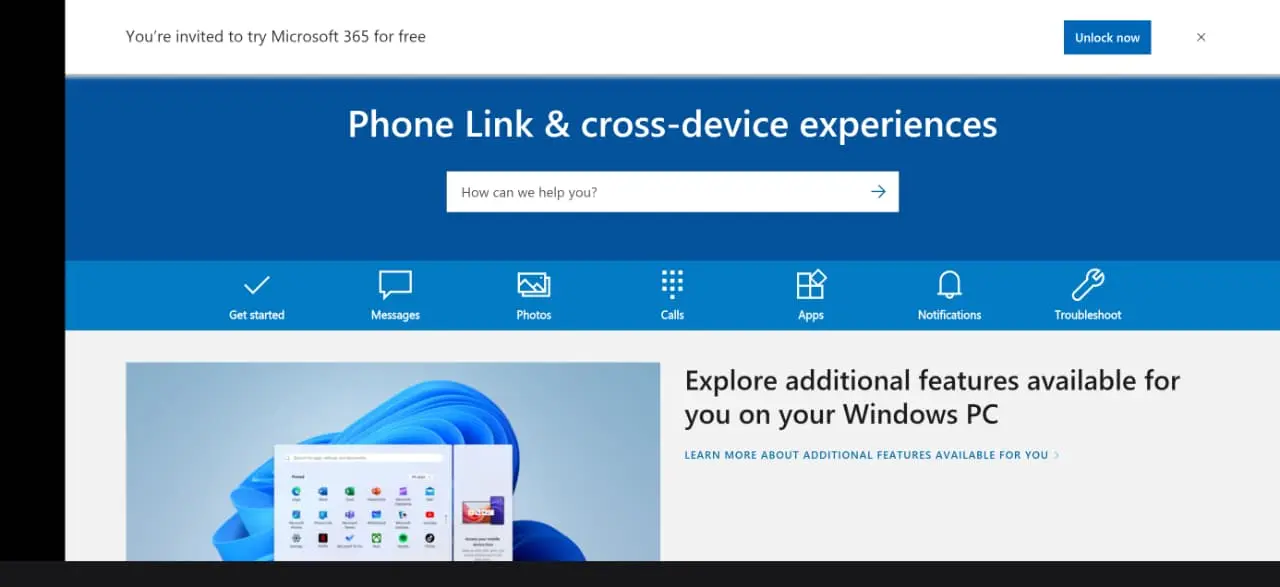
www.aka.ms/phonelink command in the browser executed successfully

What It Does Not Do

The shortcut does not:

  • Automatically connect your phone

  • Bypass account verification

  • Override network or security restrictions

  • Work fully when opened from a mobile browser

A successful connection still requires:

  • The same Microsoft account on both devices

  • Both devices on the same network

  • Required permissions enabled

If any of these conditions are missing, the pairing may fail even though the link opens correctly.

Integration with Microsoft Services

Once connected, Phone Link can work alongside:

  • OneDrive (photo backup access)

  • Microsoft Edge (link sharing)

  • Outlook and Teams notifications

  • Cross-device clipboard (where supported)

These features require permissions and compatible versions on both devices.

Frequently Asked Questions (FAQ)

1. Is aka.ms/PhoneLink safe?

Yes. aka.ms/PhoneLink is an official Microsoft shortcut URL that redirects users to the Phone Link app or the Microsoft Store on Windows.

The link itself does not install software automatically. It simply launches or installs the Phone Link application that allows a Windows PC to connect with a smartphone.

To stay safe, always confirm the page redirects to official Microsoft domains when installing the app.

2. Can I link an iPhone to my Windows PC?

Yes. Phone Link supports connecting an iPhone to a Windows PC, but the available features are more limited compared to Android.

On iPhone you can typically:

  • View and respond to messages

  • Receive notifications

  • Make and receive calls

Features such as app mirroring and deeper device integration are currently only available on Android.

3. How do I unlink my phone?

To remove a connected device:

On your PC:

  1. Open Phone Link

  2. Go to Settings

  3. Select your connected device

  4. Choose Remove device

You can also remove the connection from the Link to Windows app on your phone.

After unlinking, you can reconnect the device using the setup process again.

4. Is there a cost to use Phone Link?

No. Phone Link is free to use.

The app is included with Windows and the Link to Windows companion app is available free from the Google Play Store or App Store.

Standard network charges may apply if your mobile carrier charges for data usage.

5. Why is Phone Link blocked by my administrator?

On work or school devices, Phone Link may be disabled by device management policies.

Organizations often restrict device connections for security reasons using:

  • Group Policy

  • Microsoft Intune

  • Enterprise device management systems

If you see a message that the feature is blocked, contact your IT administrator to confirm whether Phone Link is allowed on your device.

6. Why won't Chrome open www.aka.ms/PhoneLink ?

If Chrome does not open Phone Link, the browser may be blocking the app launch request.

Try these steps:

  1. Allow popups for microsoft.com

  2. Refresh the page

  3. Confirm the prompt to open Phone Link

If the browser still does not launch the app, you can open it directly by pressing:

Windows Key + R

Then typing: ms-phonelink:

This command launches the Phone Link app without using the browser.

7. Why does Link to Windows drain my battery?

Battery drain can occur if the app is restricted or repeatedly trying to reconnect in the background.

To reduce battery usage:

  1. Open Settings → Apps → Link to Windows

  2. Set Battery usage to Unrestricted

  3. Allow background activity

  4. Disable unnecessary notification syncing if needed

Keeping the app updated also helps improve efficiency.

8. Can I connect multiple PCs to one phone?

Yes. A single phone can be connected to more than one Windows PC.

Each PC must be authorized during the pairing process.

However, you may need to switch active connections or reauthorize the device if conflicts occur.

9. Why is my PC not recognized after it was working before?

This usually happens when the pairing session becomes outdated or the network configuration changes.

Try these steps:

  1. Remove the device from Phone Link on your PC

  2. Remove the PC from the Link to Windows app on your phone

  3. Restart both devices

  4. Pair them again using the QR code

This refreshes the secure connection between the devices.

10. Why is there no audio on my Phone Link calls?

Call audio uses Bluetooth between the phone and PC.

If audio is missing:

  1. Make sure Bluetooth is turned on for both devices

  2. Confirm the devices are paired in Windows Bluetooth settings

  3. Allow microphone permissions when prompted

  4. Check that the correct audio device is selected in Windows sound settings

After reconnecting Bluetooth, call audio should work normally.

11. Why won’t my phone connect to Phone Link?

Connection failures usually happen when one of the setup requirements is missing.

Check the following:

  • Both devices are on the same Wi-Fi network

  • The same Microsoft account is used on both devices

  • Required permissions are enabled

  • The Link to Windows app is allowed to run in the background

If the problem continues, remove the device and set up the connection again.

12. Do both devices need to be on the same Wi-Fi network?

Yes, for most features the devices should be connected to the same local Wi-Fi network.

This allows the phone and PC to discover each other and maintain a stable connection.

While some functions can operate through internet services, being on the same Wi-Fi network provides the most reliable performance.

Conclusion

The www.aka.ms/PhoneLink shortcut opens the Phone Link app on Windows 10 and Windows 11 and starts the pairing process.

If the connection fails, the issue is usually related to:

  • Network configuration

  • Account mismatch

  • Permissions

  • Background app restrictions

  • Device management policies

By following the structured setup and troubleshooting steps above, most users can resolve connection problems without additional support.

Related Guides

If you’re still having issues with Phone Link, these guides may help:

  • Phone Link Notifications Not Working (Fix Guide)

  • Phone Link on Mac – Does It Work?

  • Phone Link on Chromebook – Compatibility Explained

  • Can Phone Link Connect to Multiple PCs?

Official Documentation

About This Guide

This website is an independent informational resource and is not affiliated with Microsoft.

Content is tested across Windows 10, Windows 11, supported Android devices, and iOS versions.

Last Updated: March 2026