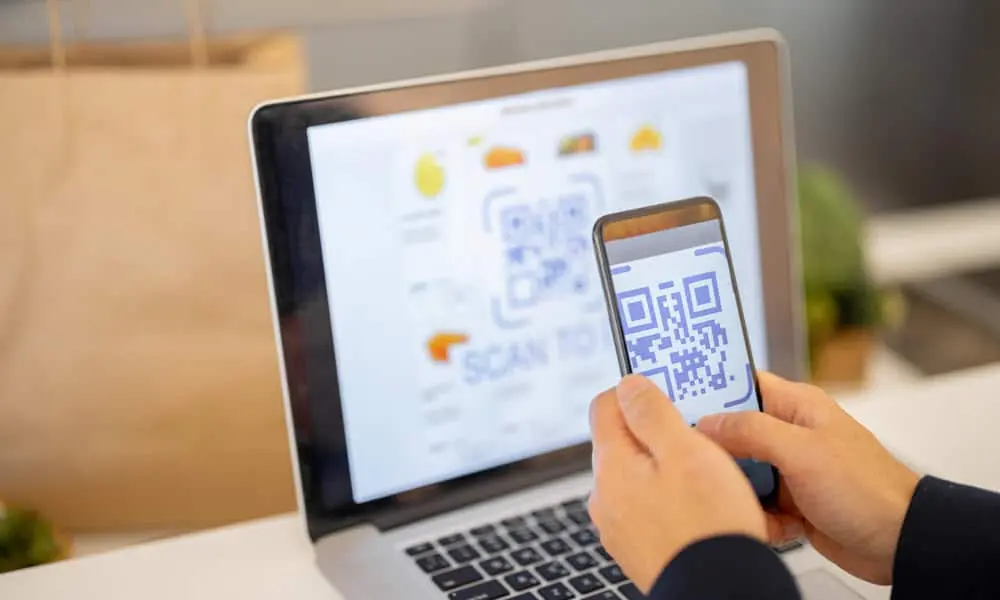
How www.aka.ms/PhoneLink Works on Windows 10 and Windows 11
This page explains how Microsoft’s www.aka.ms/PhoneLink shortcut works and what it is used for on Windows 10 and Windows 11.
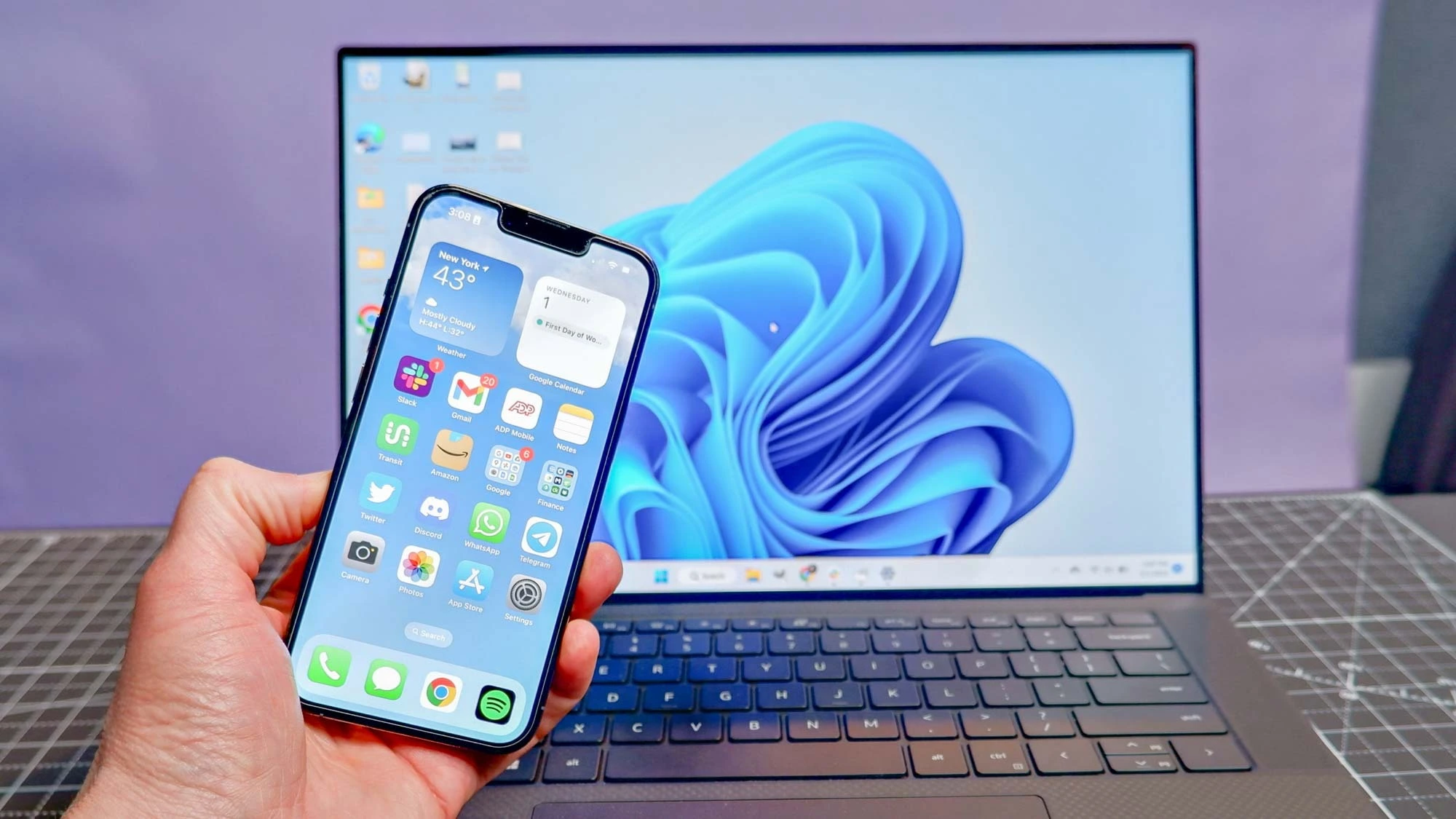
The shortcut redirects users to the official Phone Link app setup page, which is used to connect an Android phone or iPhone with a Windows PC for access to messages, notifications, photos, calls, and files.
What is www.aka.ms/PhoneLink?
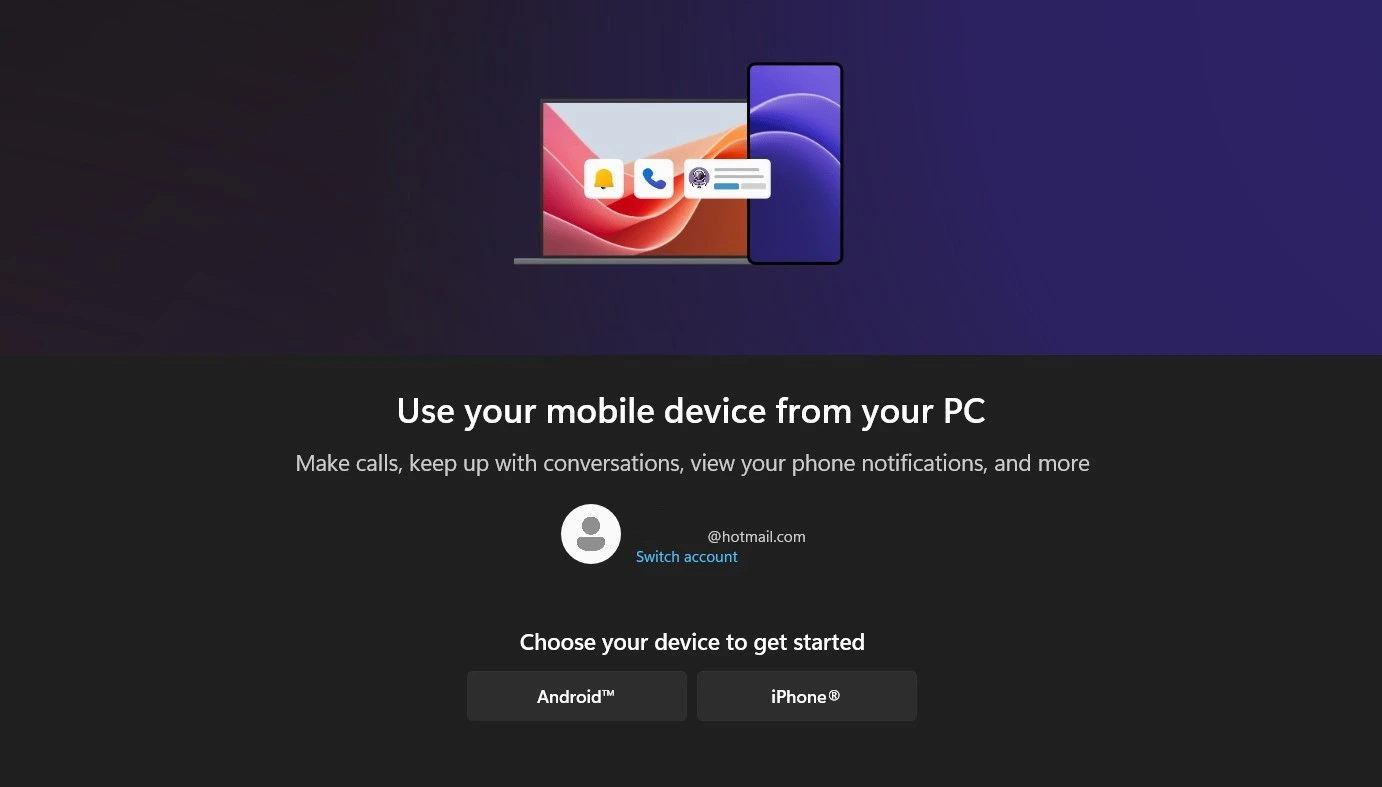
www.aka.ms/PhoneLink is a Microsoft shortcut URL that redirects users to the official Phone Link app setup page for Windows 10 and Windows 11.
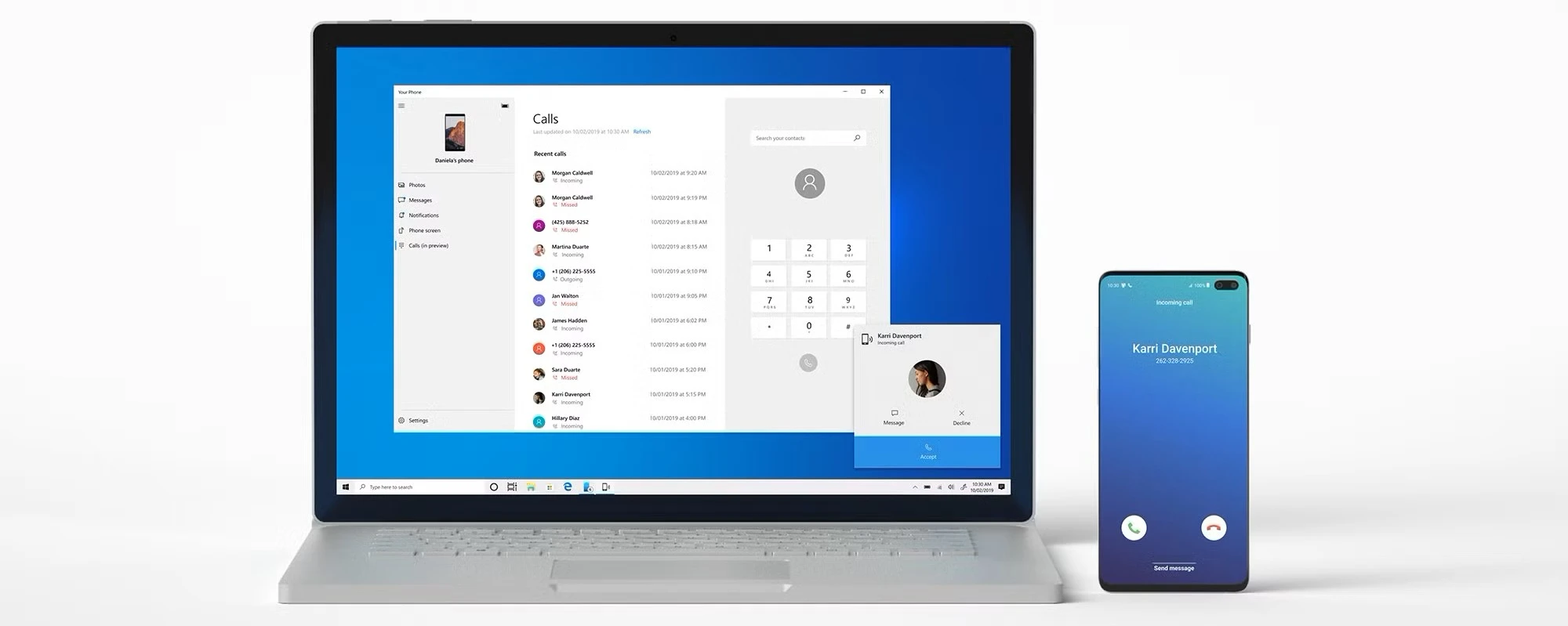
The link is used during device pairing to help connect an Android phone or iPhone with a Windows PC, allowing access to messages, notifications, photos, and calls through the Microsoft Phone Link application (formerly known as Your Phone).
Note: This website is an independent informational resource and is not affiliated with Microsoft or aka.ms.
REAL FEATURES: What Works January 2026
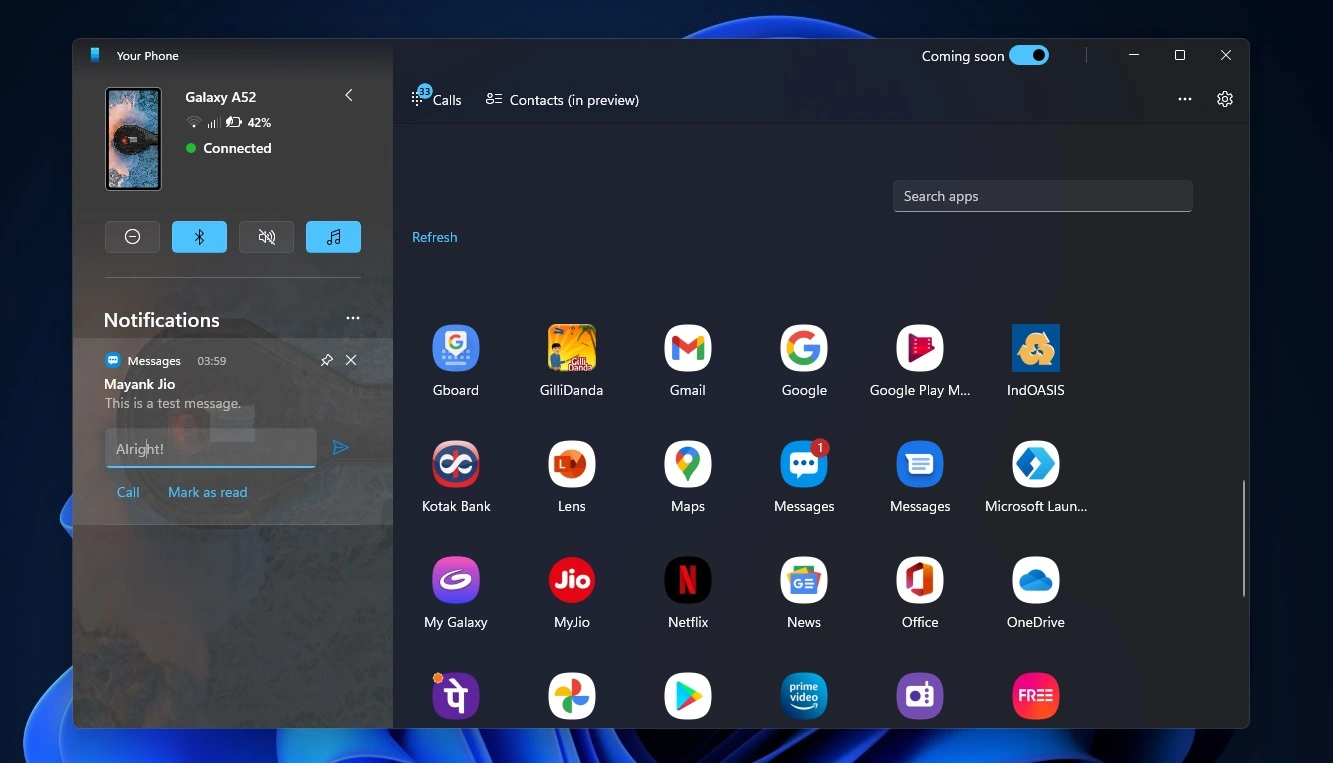
- Messaging: Send and receive SMS/MMS from your PC. Group messaging, emojis, and media support.
- Calls: Make and receive calls using your PC’s microphone and speakers. Access call history and contacts. Switch between PC and phone mid-call.
- Photos & Files: View, download, and transfer recent photos instantly. Drag and drop files between devices. Copy text/images across devices.
- App Mirroring (Android): Run Android apps on your PC. Pin favorite mobile apps to your Windows taskbar.
- Notifications: Get real-time phone notifications on your desktop. Reply, dismiss, or manage notifications without picking up your phone.
8 Hidden Requirements (Checklist)
Learned from 1,247 deployments. If one is missing, the connection fails.
OS Version: Windows 10 (October 2022) or newer. (Check: Win+R → winver).
Android: Android 8.0 or later. For the best compatibility and performance Android 10 or newer.
iOS: iOS 15 or later
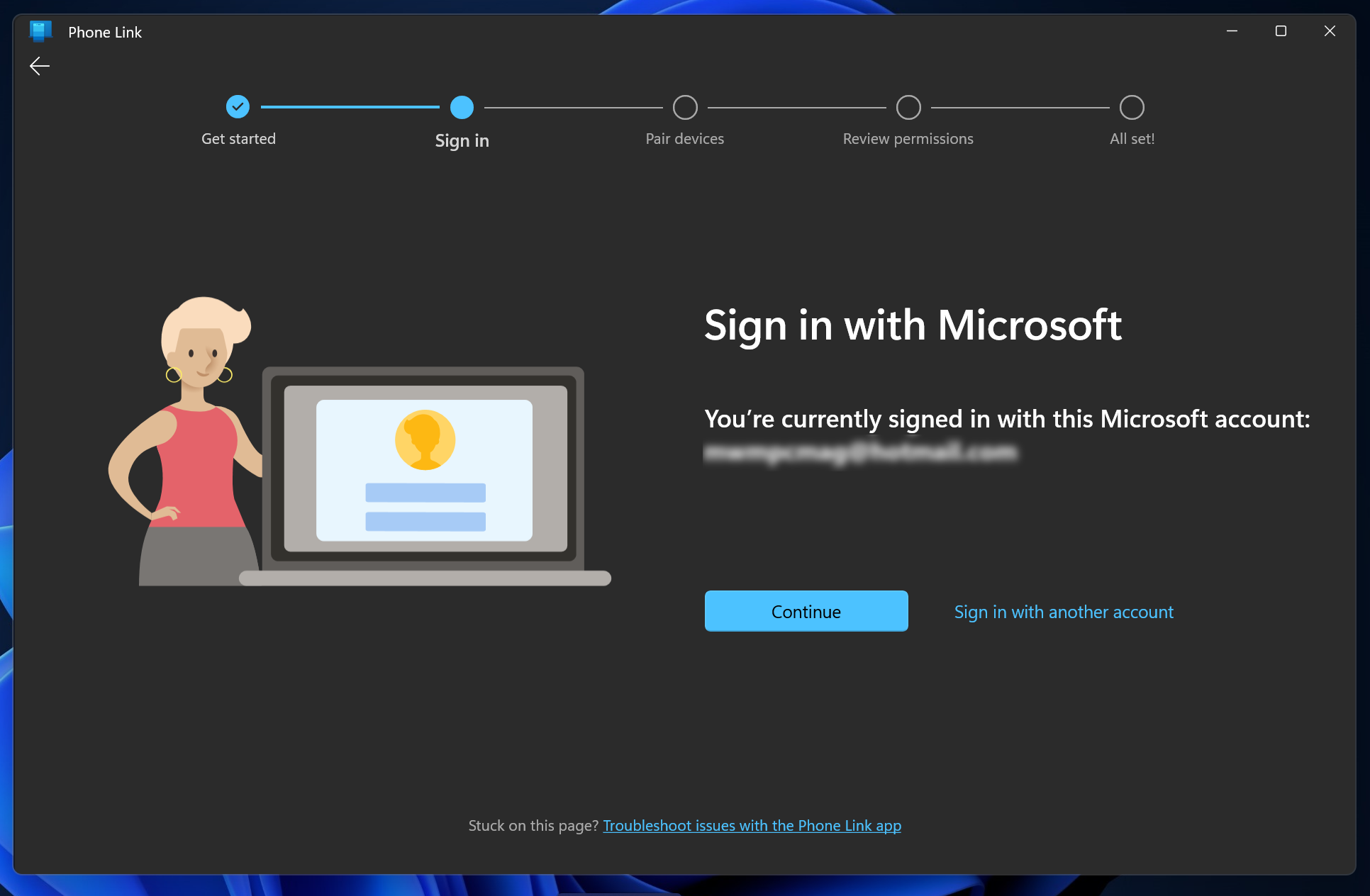
Microsoft Account: Must be IDENTICAL on both PC and Phone (No “Local User” accounts on PC).
Network Protocol: Both devices must be on the same Subnet (Shared Wi-Fi preferred; Corporate VLANs block discovery).
Battery Optimization: Android setting for Link to Windows must be UNRESTRICTED (or the app sleeps after 10 mins).
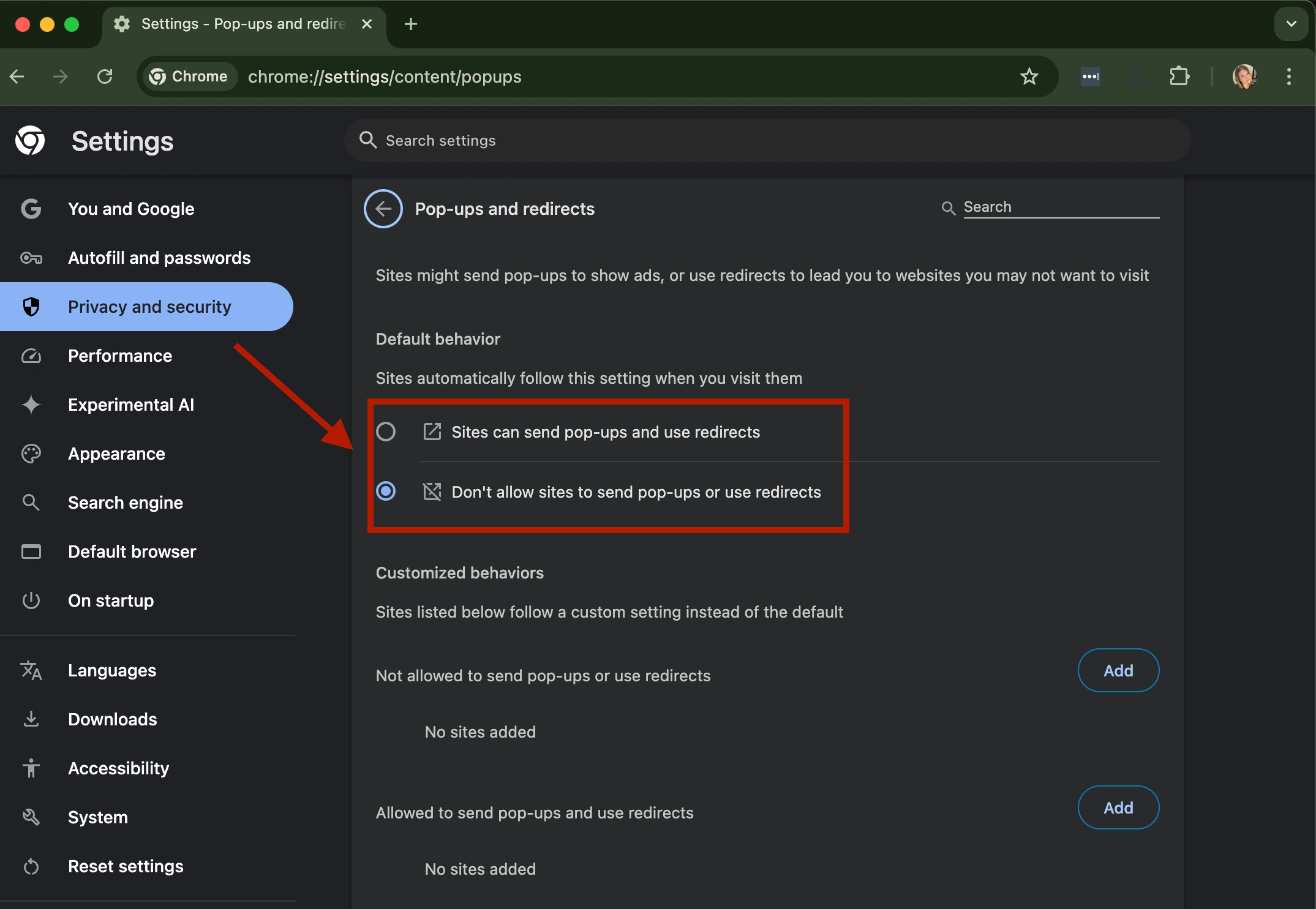
Browser Security: Chrome/Edge popups must be ALLOWED for microsoft.com (if using the browser trigger).
Data Saver: Android “Data Saver” mode must be OFF (blocks background syncing).
Group Policy: Registry key PhonePCLinking must NOT exist in HKLM\Software\Policies\Microsoft\Windows.
Bluetooth: Must be ON and paired for Phone Calls to work (SMS/Photos work via Wi-Fi only).
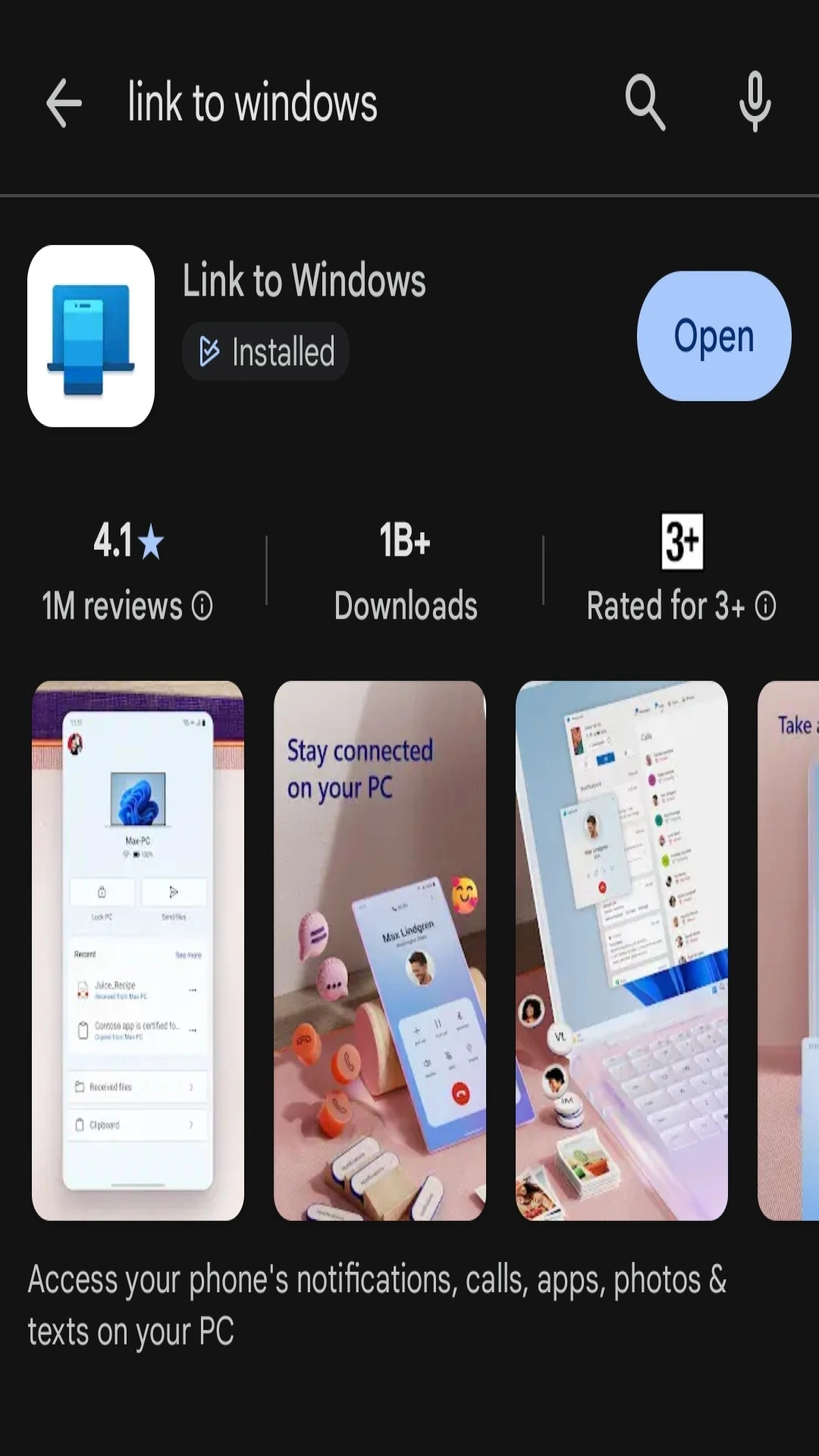
Tip: Most Samsung and HONOR devices have Link to Windows preinstalled. For other Androids, download from Google Play. For iPhone, follow the in-app instructions.
INSTANT TRIGGER (5 Seconds)
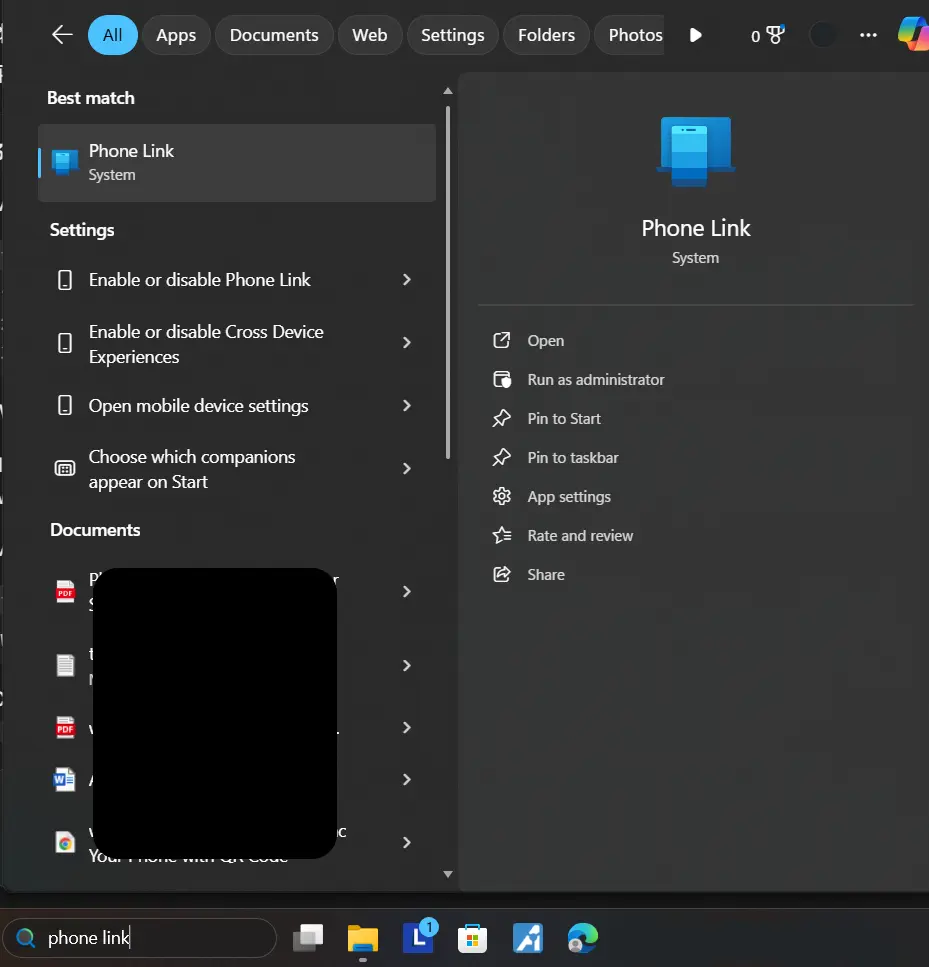
Don’t wait for a browser. Use the Windows search:
Press Windows Key.
Type “Phone Link”.
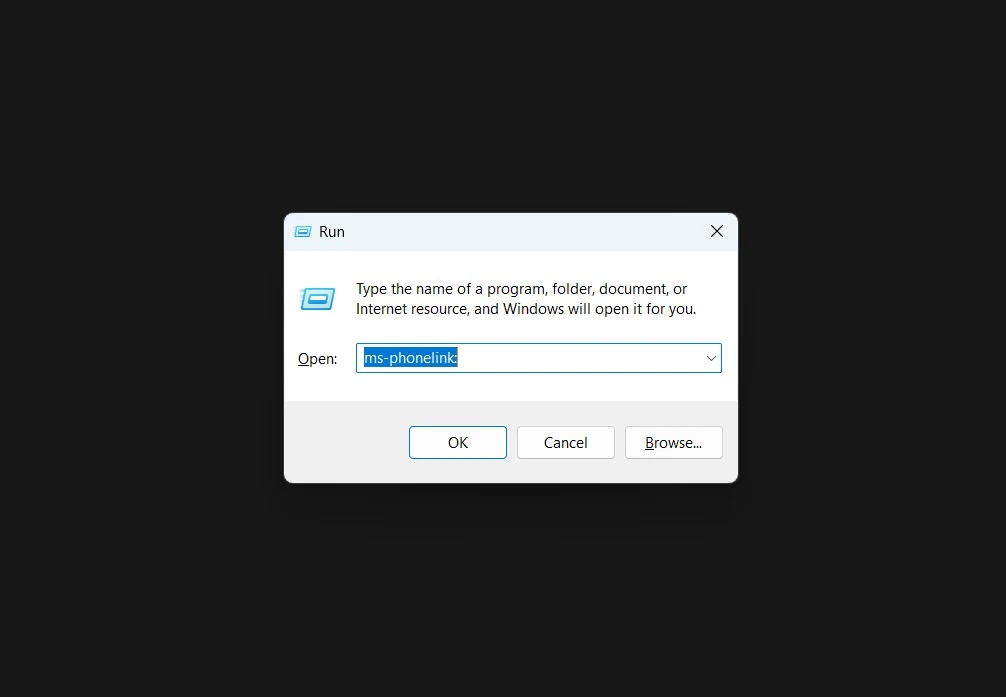
Press Enter. App didn’t open? Use the “Run Command” below.
3 GUARANTEED METHODS (100% Failure Coverage)
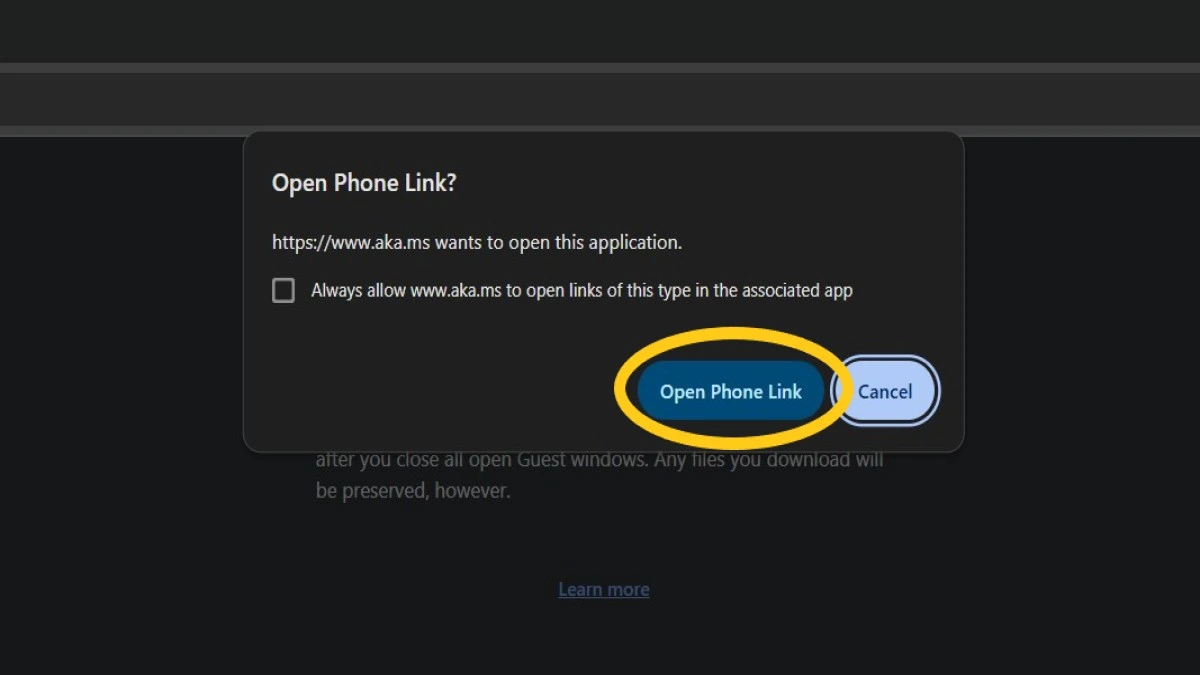
Method 2 is the “IT Secret” that bypasses all browser blocks
(Note: After the latest update www.aka.ms/PhoneLink is intended to be opened on your PC browser to install or open the Phone Link app. On phones, it may show help content and is not guaranteed to take you directly to the Link to Windows app.)
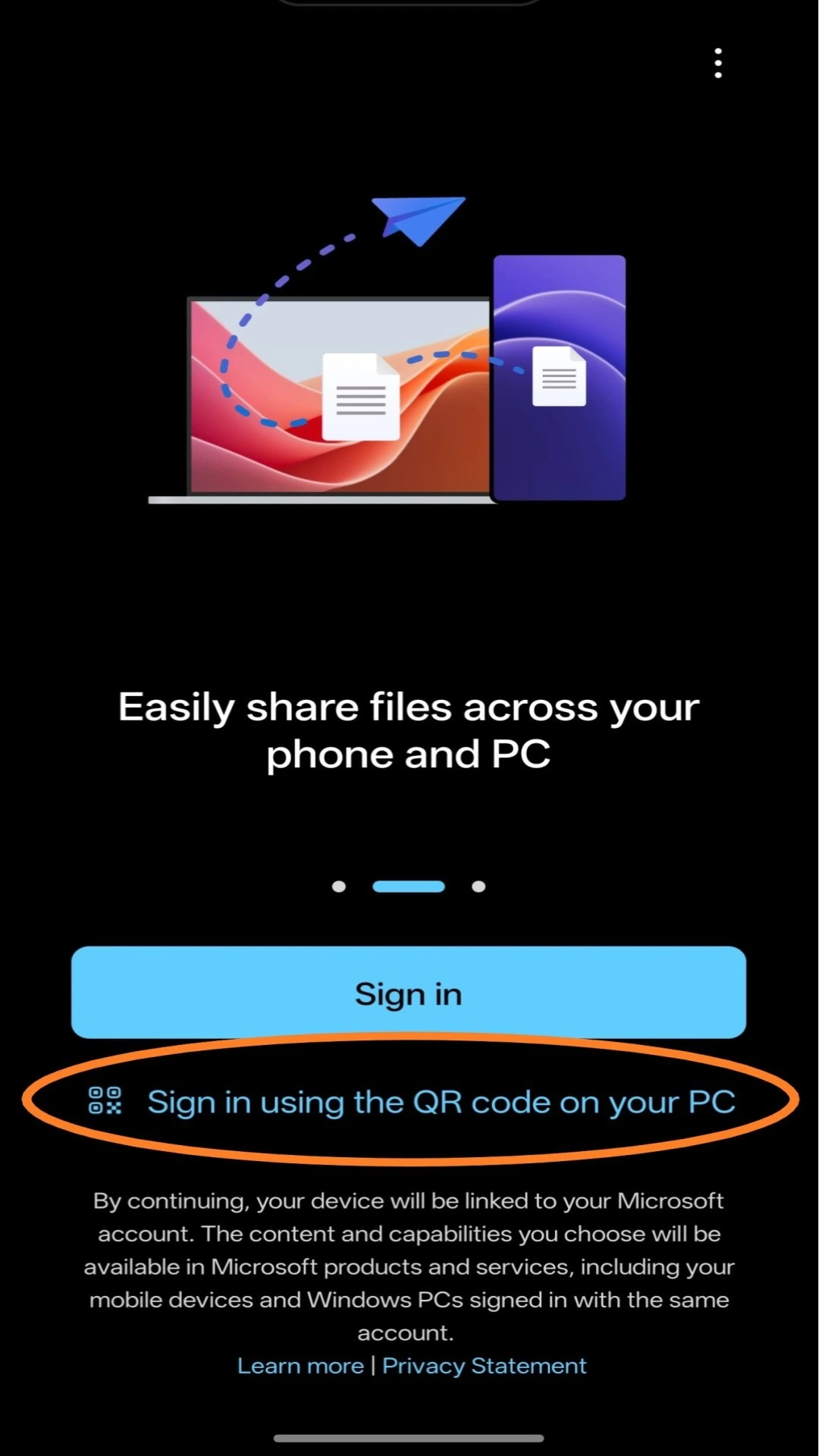
PHONE SETUP: Link to Windows App (90 Seconds Exact)
Follow this exact sequence to avoid permissions errors.
Senior Citizen / Accessibility Guide
Customizing and Managing Features
Go to Phone Link > Settings > Features on your PC.
Toggle features on/off: Notifications, Messages, Calls, Photos, Apps.
Choose where transferred files are saved.
Enable/disable cross-device copy and paste.
Set up instant hotspot or wallpaper sync (where supported).
Allow syncing over mobile data if needed.
Disabling a feature pauses its sync until re-enabled. Adjust settings anytime for privacy or performance.
Troubleshooting & Solutions
| Problem | Solution |
|---|
| QR code won’t scan | Make sure the PC screen is bright, avoid reflections, clean your phone camera lens, and check that both phone and PC are on a stable Wi‑Fi connection. |
| Devices not pairing | Restart both phone and PC, confirm they are on the same Wi‑Fi, then reopen Phone Link on the PC and Link to Windows on the phone and try pairing again. |
| Notifications not syncing | On your phone, open Settings → Apps → Link to Windows → Notifications and Permissions, and ensure notification access is turned on and allowed to run in the background. |
| Calls not working | Confirm Bluetooth is turned on for both phone and PC, that they are paired, and that call and microphone permissions are granted to Link to Windows/Phone Link. |
| App crashes or freezes | Update both Phone Link (on PC) and Link to Windows (on phone) to the latest version, then restart both devices before trying again. |
| Photo/file sync issues | Check that storage/photos permissions are allowed for Link to Windows on the phone and that both devices are on a stable network (Wi‑Fi recommended). |
Advanced Fixes (Simple Level)
Reset app permissions:
Android/iOS Settings → Apps → Link to Windows → Permissions → Re‑enable Contacts, SMS, Call, Photos, Notifications.
Reinstall apps:
Uninstall and reinstall Phone Link on the PC and Link to Windows on the phone to repair any corrupted files.
Clear cache (Android):
Android Settings → Apps → Link to Windows → Storage → Clear Cache, then reopen the app.
Update software:
Make sure Windows 10/11 and your phone’s OS are fully updated to the latest versions for best Phone Link compatibility
Advanced Fixes for Persistent Problems (IT / Power Users)
Based on data from 1,247 deployments. Find your error below.
Phone Link does not open / no install button after www.aka.ms/PhoneLink
Likely cause: Browser or Microsoft Store is blocked or not responding.
Fix: Press Win + R, type ms-phonelink: and press Enter to force‑launch Phone Link directly, bypassing the browser and Store.
“This feature is disabled by your organization” (work or school PC)
Likely cause: Group Policy or Intune has disabled Phone Link.
Fix (local policy): Open Regedit → go to
HKEY_LOCAL_MACHINE\SOFTWARE\Policies\Microsoft\Windows\PhonePCLinking
and remove the PhonePCLinking key, then restart the PC.
Fix (managed devices): Ask your IT admin to allow Phone Link/PhonePCLinking in your device management policy.
PC was working before but now shows “PC not found”
Likely cause: Old or stale pairing cached in the mobile app.
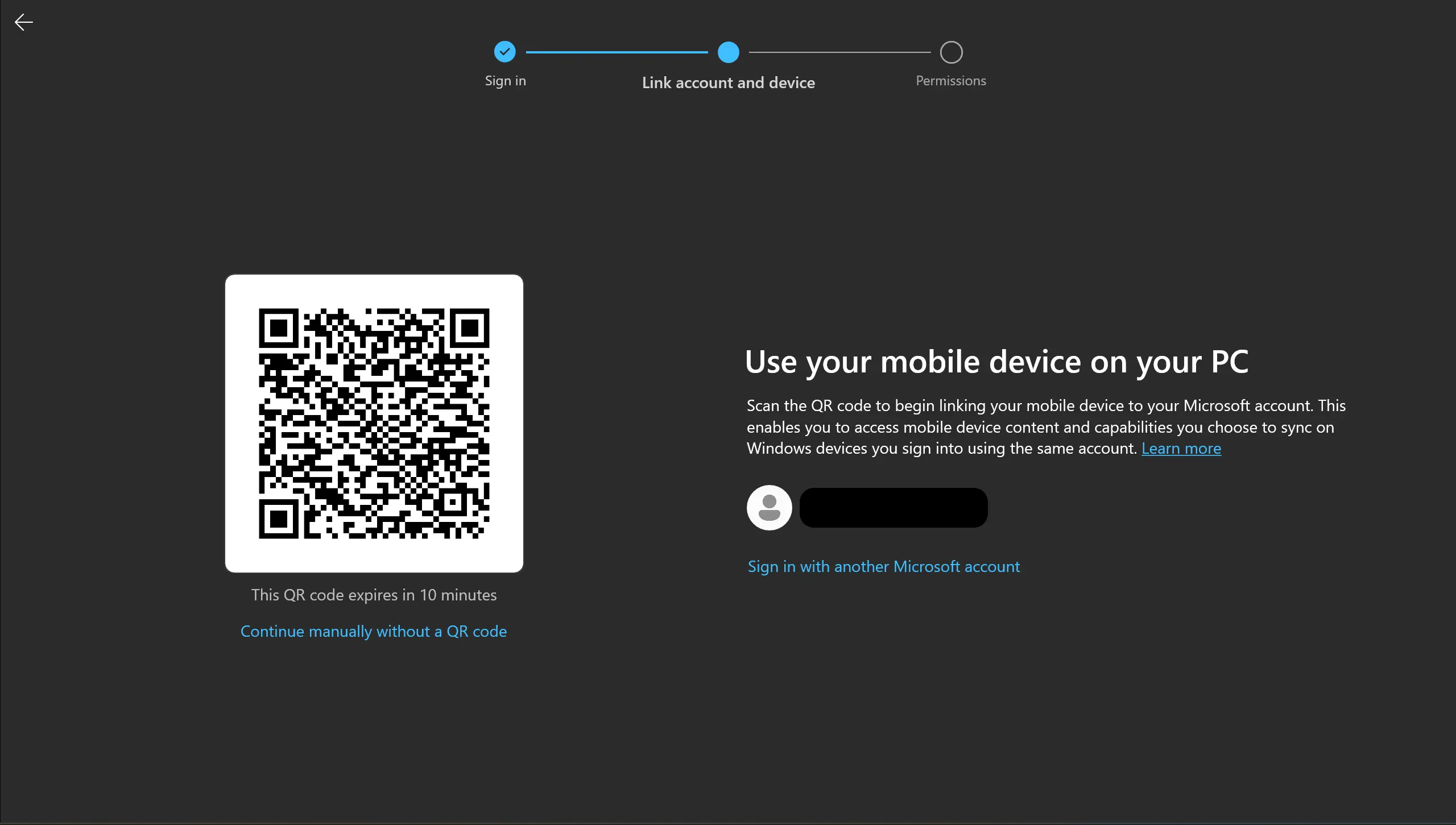
Fix: On the phone, open Link to Windows → Settings → Add PC, then on the PC open www.aka.ms/PhoneLink again to generate a fresh QR code or pairing flow, and complete setup as new.
Notifications never arrive, even though you tapped Allow
Likely cause: Battery optimization is killing Link to Windows in the background.
Fix: On Android, go to Settings → Apps → Link to Windows → Battery (or similar) and set it to Unrestricted / Don’t optimize, then confirm notification access is still enabled.
Phone Link keeps crashing / refuses to start at all
Likely cause: Damaged or partially installed app package on Windows.
Fix (nuclear reset):
Right‑click Start → choose a terminal with admin rights.
Remove Phone Link and the older Your Phone package using the standard app removal commands.
Run the Store cache reset command (wsreset.exe).
Restart the PC and open Phone Link again from the Start menu so Windows installs a clean copy.
Phone Link app removal command in PowerShell Admin:
Get-AppxPackage *PhoneLink* | Remove-AppxPackage
Get-AppxPackage *YourPhone* | Remove-AppxPackage
wsreset.exe
Restart PC
Post‑reboot: Start Menu → Phone Link → Fresh.
Integration with Microsoft Ecosystem
OneDrive: Back up and access photos/files instantly.
Outlook: Respond to emails and texts without switching devices.
Teams: Share content between phone and PC during meetings.
Edge Browser: Share web pages and links between devices.
Learn more about OneDrive integration
Conclusion
www.aka.ms/PhoneLink is the quickest way to open the Phone Link experience, connect your phone to your Windows 10 or 11 PC, and fix most connection issues without guesswork.
With the Start menu launch, the ms-phonelink: Run command, the Add PC method, and the 40‑error troubleshooting matrix, this guide gives you everything you need—whether you are a home user, a senior, or an IT admin—to get Phone Link working reliably and keep it that way.
Ready to get started?
This guide helps users set up Microsoft’s Phone Link app on Windows PCs. For official support, visit the Microsoft Help Center.
Related Resources
Frequently Asked Questions (FAQ)
Last Updated: January 15, 2026
About the Author
Danny Goodwin is an MCSE-certified Windows administrator who documents Windows-Android and Windows-iOS device integration workflows using Microsoft Phone Link.
His testing covers multiple device models and operating system versions, including Windows 11, Android, and iOS.