aka.ms/PhoneLink — Open Phone Link & Continue Setup on Windows
aka.ms/PhoneLink — Open Phone Link & Continue Setup on Windows
🔗 Open Phone Link Now: Visit www.aka.ms/PhoneLink
If you searched www.aka.ms/PhoneLink while trying to connect your phone to a Windows PC, you are in the right place.
This shortcut opens Microsoft Phone Link and helps you continue the device pairing process between your phone and computer.
If the connection stopped midway or your phone is not detecting your PC, the issue usually happens during one of the setup steps — not because the shortcut itself is broken.
In most cases, pairing problems can be resolved in a few minutes by checking a few essential settings before restarting the setup.
What Is www.aka.ms/PhoneLink ?
www.aka.ms/PhoneLink is an official Microsoft shortcut link used to open or install the Phone Link app on a Windows PC.
It does not create the connection by itself.
It simply launches the app that manages the pairing process between your phone and your computer.
What www.aka.ms/PhoneLink Does
When opened on a Windows PC, the link:
Launches the Phone Link app if it is already installed
Redirects to the Microsoft Store if installation is required
Starts the pairing flow between your PC and phone
It acts as a quick access point to the Phone Link setup process.
What www.aka.ms/PhoneLink Does Not Do
The shortcut does not:
Automatically connect your phone
Bypass account verification
Override network or security restrictions
Work fully when opened from a mobile browser
A successful connection still requires:
The same Microsoft account on both devices
Both devices on the same network
Required permissions enabled
If any of these conditions are missing, the pairing may fail even though the link opens correctly.
Quick Fix Checklist (Start Here)
Before reinstalling apps or restarting the setup, confirm these essentials:
• Both devices are connected to the same Wi-Fi network (avoid guest networks)
• You are signed in with the same Microsoft account on both your Windows PC and your phone
• VPN is temporarily turned off on both devices
• Phone Link is updated from the Microsoft Store on your PC
• The Link to Windows app is updated on your phone
• Bluetooth is turned on (required for calling features and device discovery)
If everything above looks correct and pairing still fails, continue to the full setup steps and troubleshooting guidance below.
Table of Contents
ToggleReset Phone Link Connection (Recommended if Pairing Still Fails)
If Phone Link continues to fail after basic checks, restarting the pairing process usually resolves cached connection conflicts.
Follow these steps to reset the connection safely:
On your Windows PC:
Open Phone Link
Go to Settings → Devices
Select your phone and choose Remove
On your phone:
Open the Link to Windows app
Remove the connected PC from the device list
Then:
Restart both your phone and your PC
Open Phone Link again and complete setup as a new pairing
This refreshes the secure connection session and resolves most repeated pairing or detection issues.
If your phone still cannot detect your PC or pairing repeatedly fails, you may need more targeted troubleshooting.
👉 See full recovery steps: Phone Link Not Connecting (Full Fix Guide)
How Phone Link Pairing Works (Quick Flow)
If you are setting up Phone Link for the first time or restarting pairing after a reset, follow this quick connection flow:
Step 1 — Open Phone Link on your Windows PC
Press the Windows key, type Phone Link, and open the app.
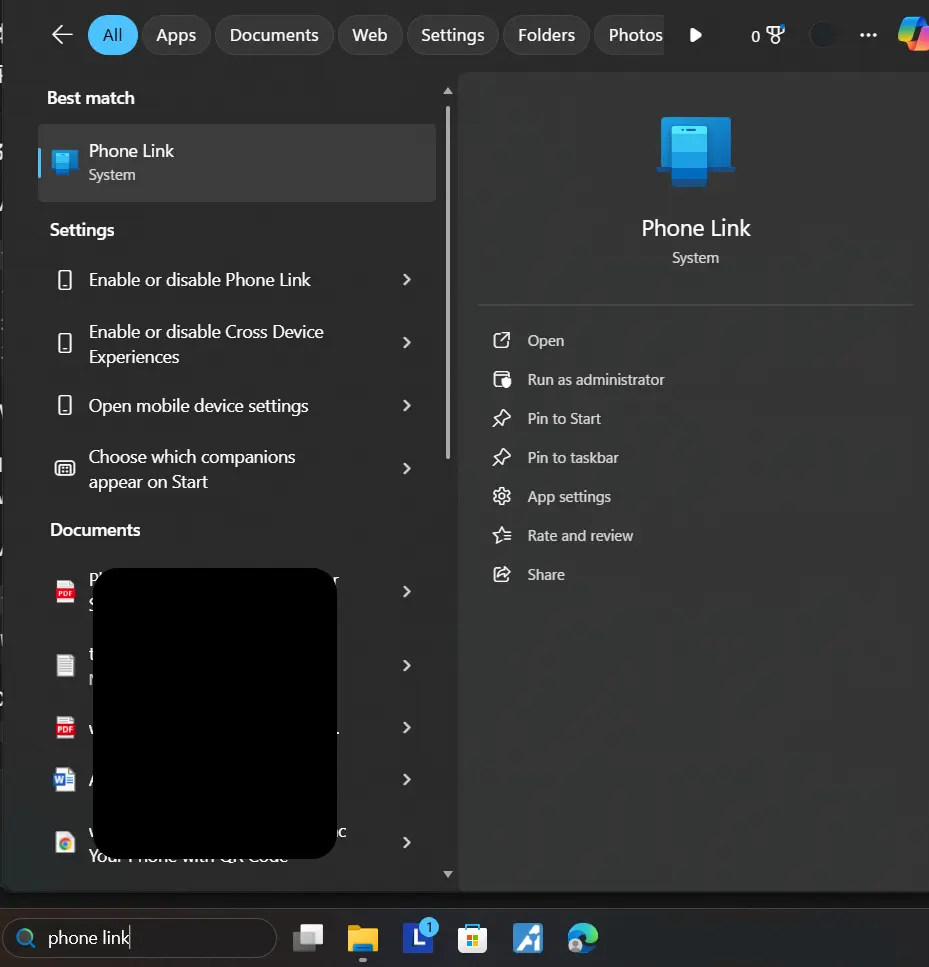
If it does not open, visit www.aka.ms/PhoneLink from your PC browser.
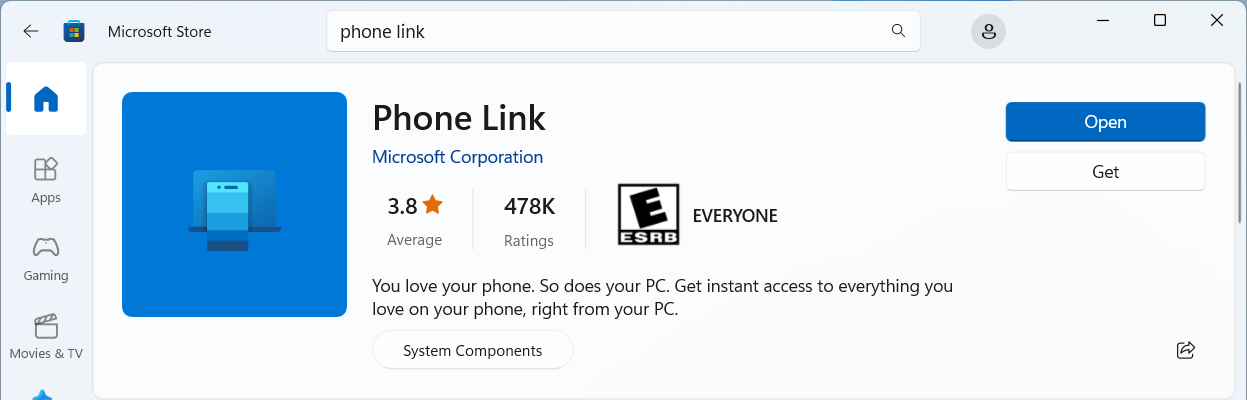
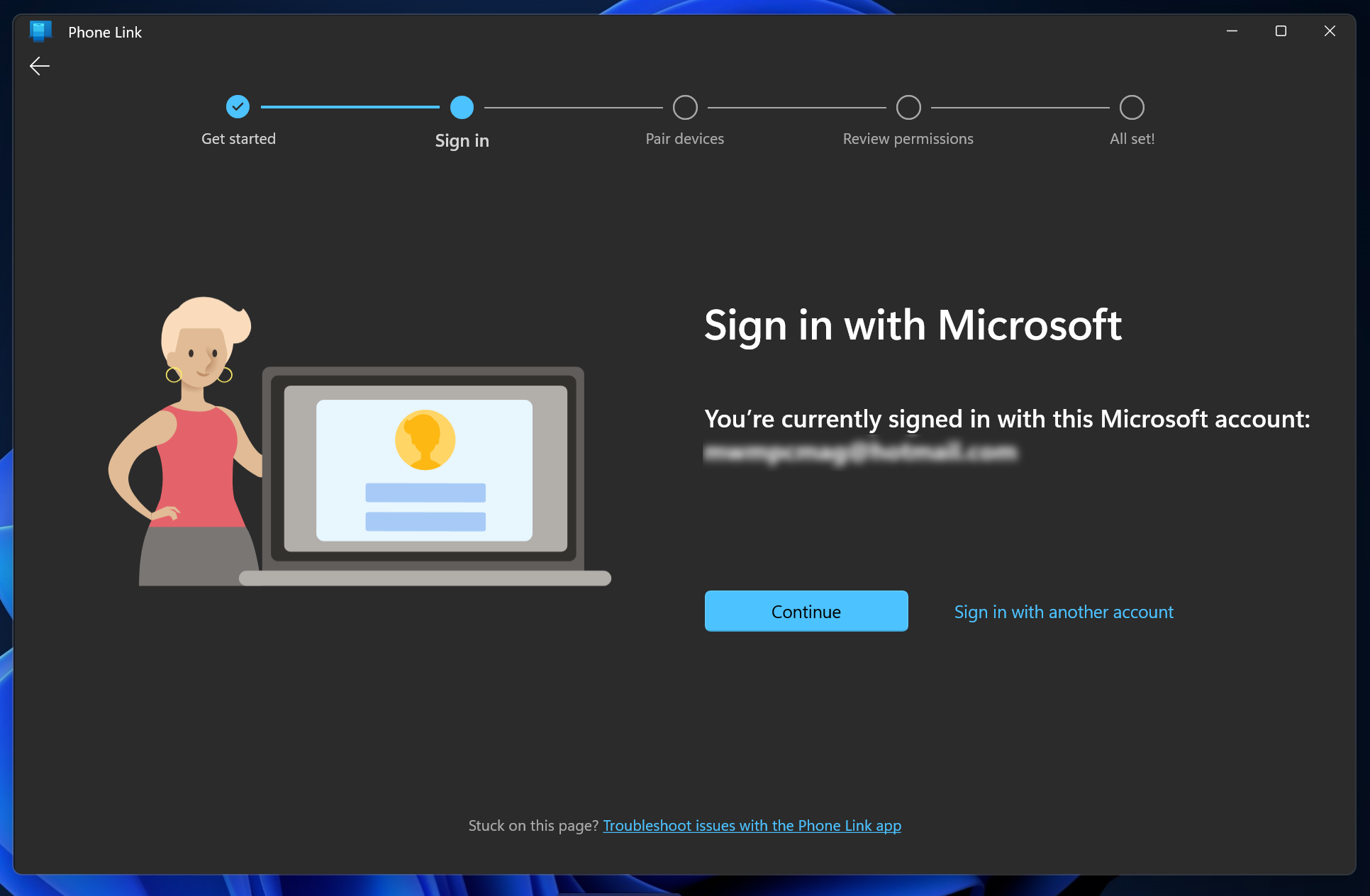
Step 2 — Sign in with your Microsoft account
Make sure you use the same Microsoft account that you will use on your phone.
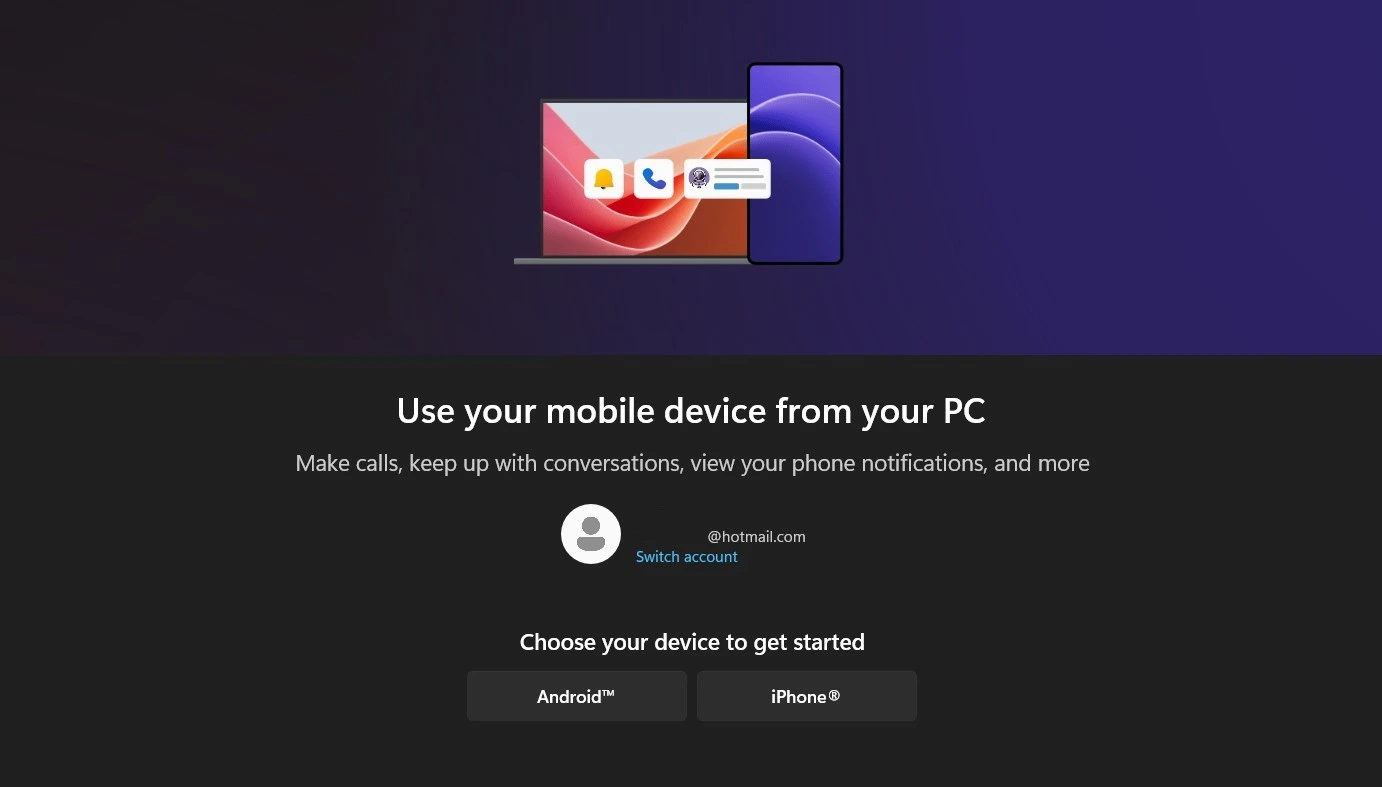
Step 3 — Choose your phone type
Select Android or iPhone, then continue.
If you are connecting an iPhone, Phone Link supports notifications, messages, and calling with limited integration compared to Android devices. Some advanced features are not available on iOS.
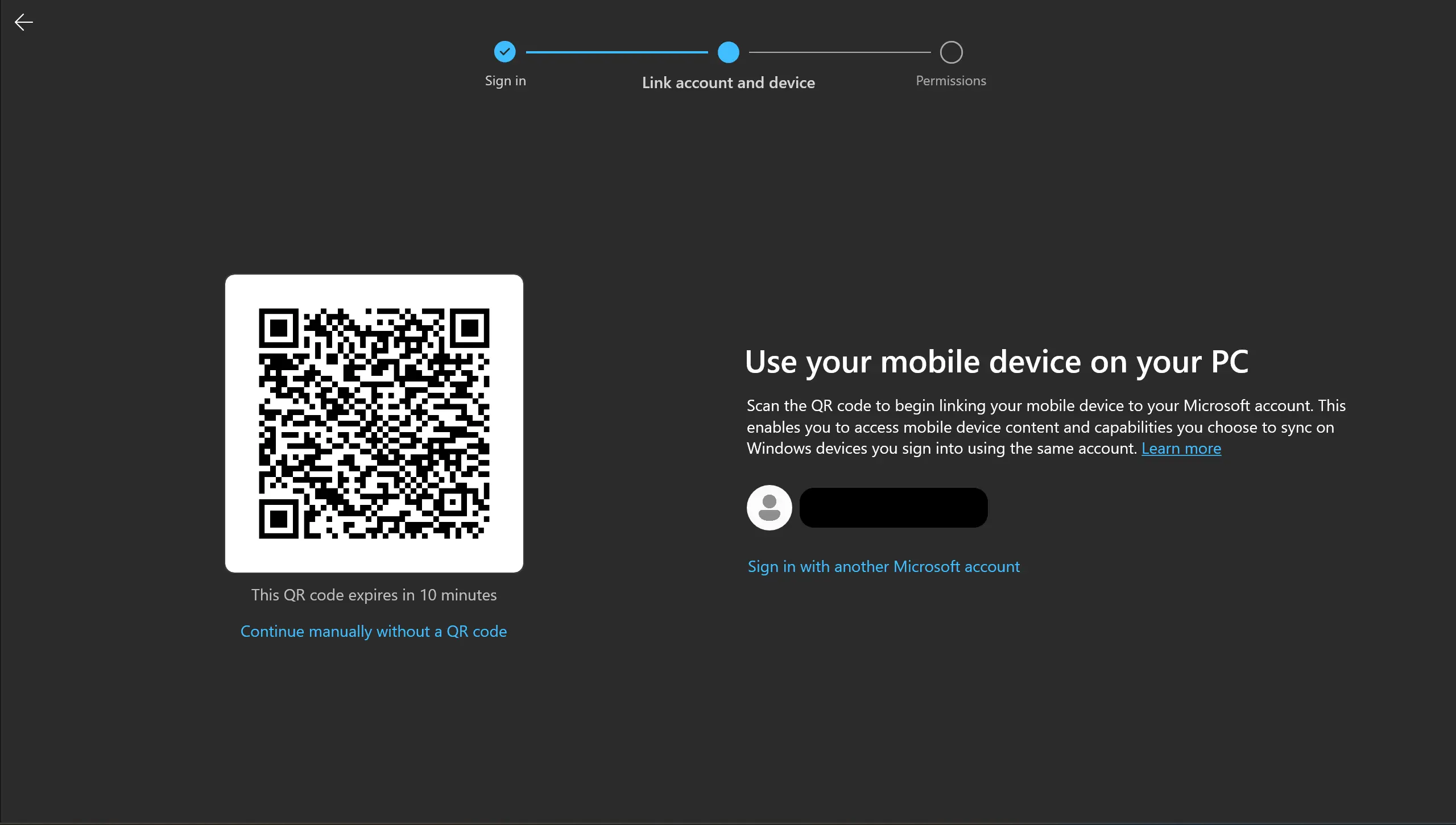
Step 4 — Scan the QR code or enter the pairing code
A QR code will appear on your PC.
On your phone, open the Link to Windows app and scan the QR code.
If scanning does not work, choose the option to continue without a QR code and enter the pairing code shown on your PC.
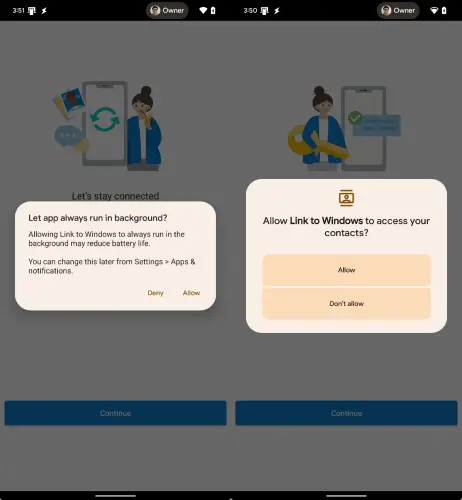
Step 5 — Allow required permissions
Approve notifications, contacts, messages, photos, Bluetooth, and background activity when prompted.
These permissions are required for full syncing.
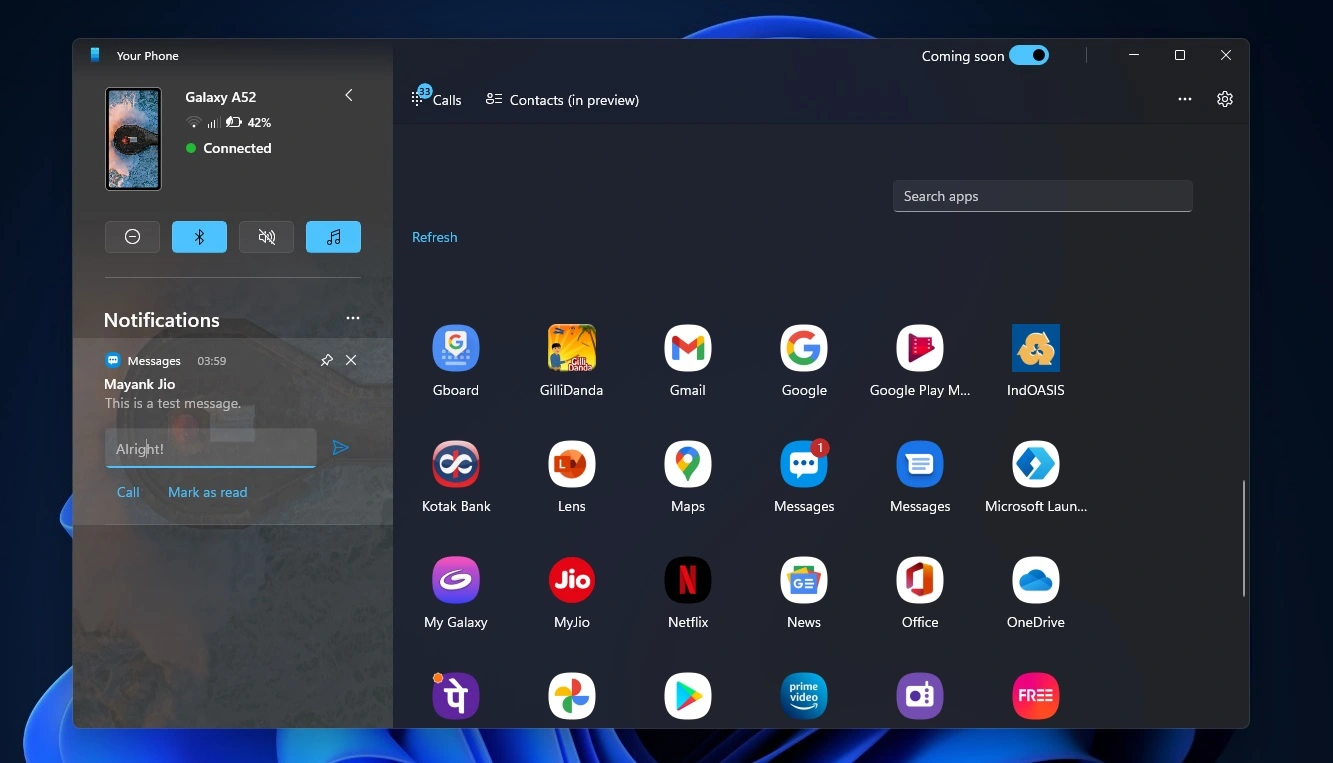
Step 6 — Confirm the connection
After pairing completes, your phone will appear inside Phone Link on your Windows PC.
Test the connection by sending yourself a message or checking notifications.
If pairing fails at any step, continue to the troubleshooting fixes below.
Common Phone Link Problems & Quick Fixes
If Phone Link pairing does not complete after basic checks, identify the issue below and follow the corresponding fix.
QR Code Won’t Scan
Likely cause: glare, permission issue, or expired session
Try this:
Increase PC screen brightness
Clean phone camera lens
Close and reopen Phone Link to generate a new QR code
Allow camera permission for Link to Windows
Devices Won’t Pair
Likely cause: network mismatch, account mismatch, cached session
Try this:
Connect both devices to the same private Wi-Fi network
Confirm the same Microsoft account is signed in
Remove the device in Phone Link and start pairing again
Notifications Not Syncing
Likely cause: notification access disabled or background restriction
Try this:
Enable notification access for Link to Windows
Disable battery optimisation or allow background activity
Restart both devices
If notifications are missing or delayed even after basic checks, deeper background syncing or permission issues may be involved.
👉 Continue here: Phone Link Notifications Not Working
Calls Not Working
Likely cause: Bluetooth pairing incomplete or microphone permission blocked
Try this:
Turn on Bluetooth on both devices
Re-pair if necessary
Allow microphone and call permissions
Photos or Files Not Syncing
Likely cause: storage permission denied or unstable connection
Try this:
Enable Photos / Storage permission
Ensure stable Wi-Fi connection
Restart Phone Link
Why www.aka.ms/PhoneLink Sometimes Doesn’t Open
The www.aka.ms/PhoneLink address is a Microsoft shortcut used to launch or install the Phone Link app on a Windows computer.
If the link appears not to work, it usually means the launch process was interrupted — not that the shortcut itself is broken.
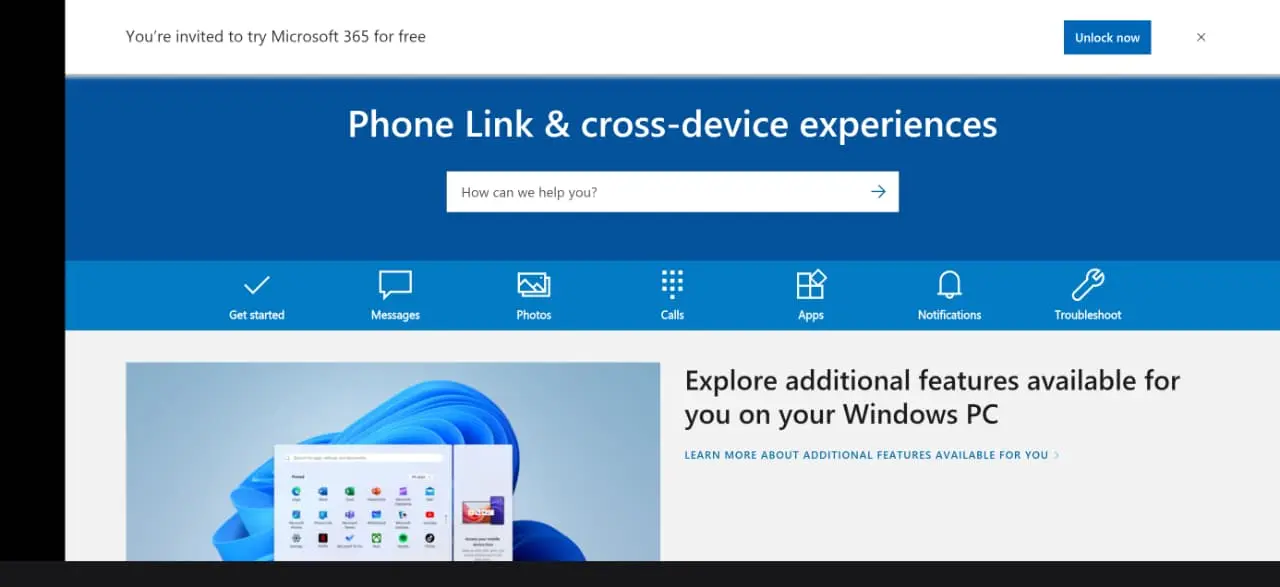
Opening the Link on the Wrong Device
This shortcut is designed to trigger Phone Link on a Windows PC.
If you open it on an Android phone or iPhone browser, you may see:
a Microsoft help page
a generic download page
or no visible action
This is expected behaviour.
To continue setup, open the link from your Windows PC.
Browser Blocking the Launch Request
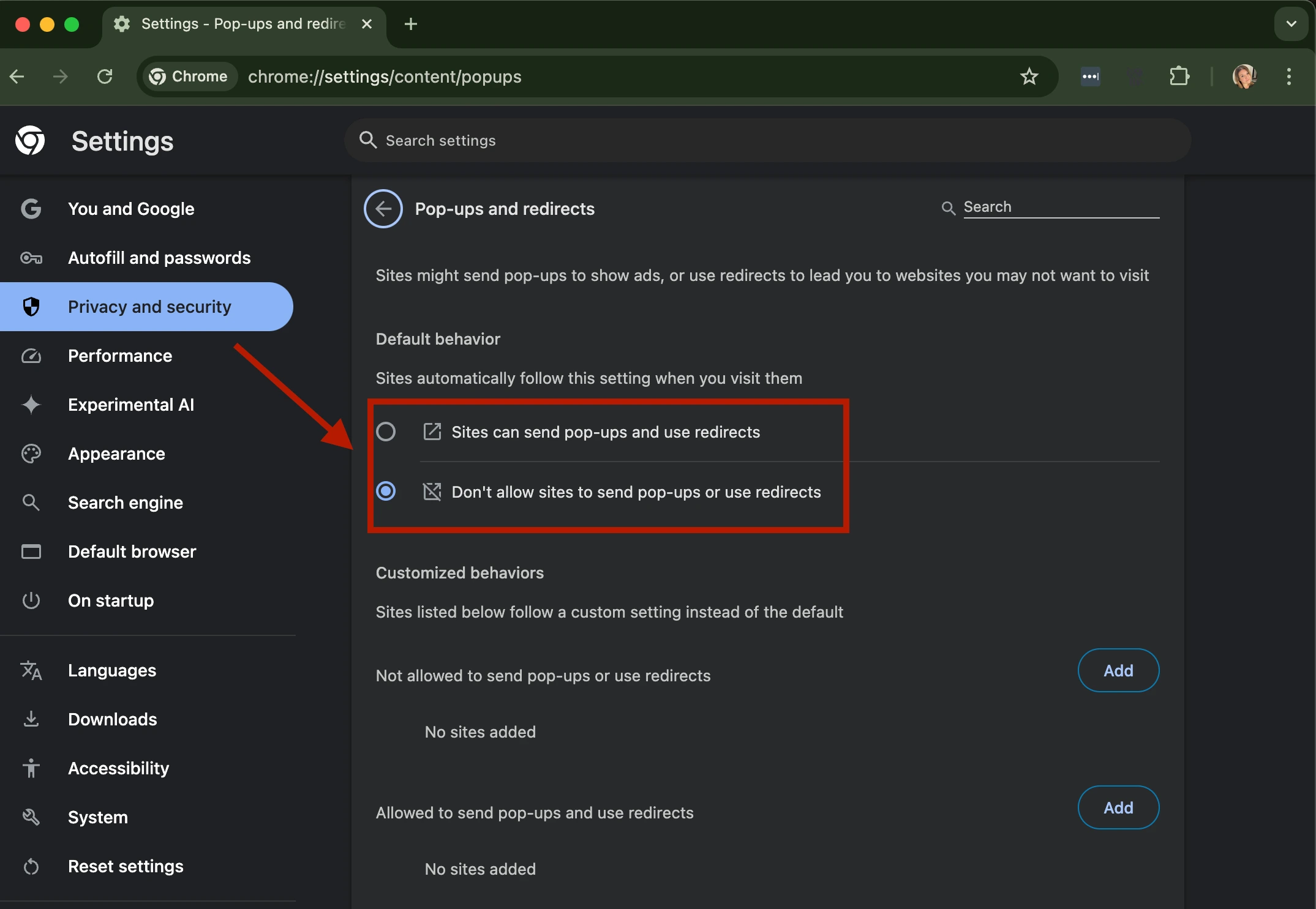
When opened on a computer, the shortcut may try to launch Phone Link or open the Microsoft Store automatically.
Some browsers block this request.
To fix this:
Allow pop-ups or app launch prompts
Refresh the page
Confirm the “Open Phone Link” or Microsoft Store prompt
Microsoft Store or App Launch Issues
In rare cases, the browser trigger may fail completely.
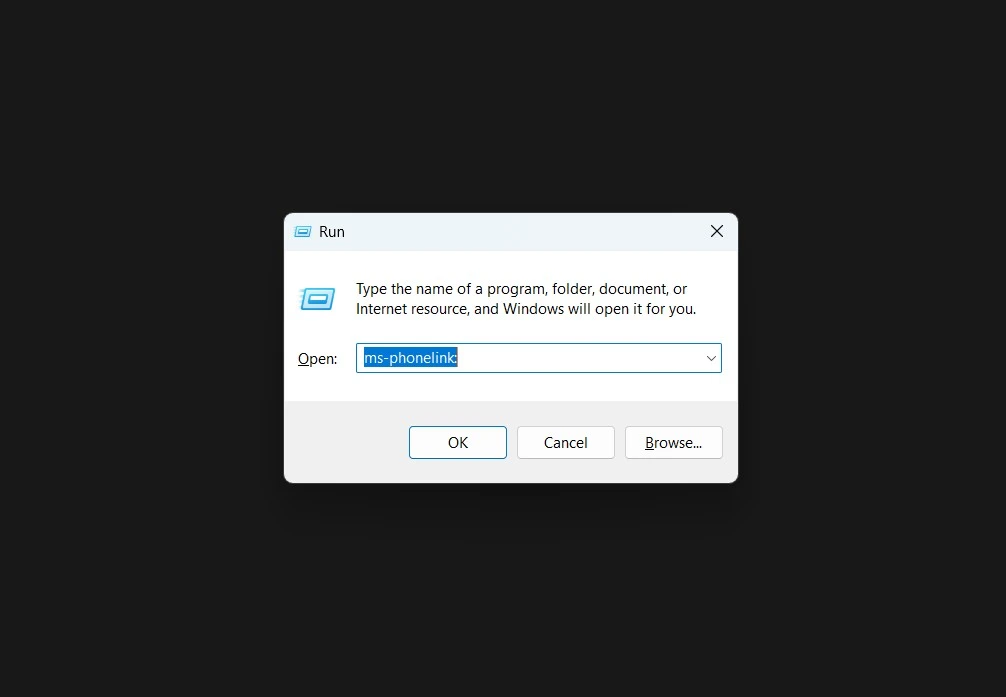
You can launch Phone Link manually:
Press Windows Key + R
Type:
ms-phonelink:
Press Enter.
This opens Phone Link directly without using a browser.
If the app is not installed, open the Microsoft Store and search for Phone Link.
Work or School Device Restrictions
On managed computers, Phone Link may be disabled by organisational policy.
If you see a message stating the feature is blocked, you will need to contact your IT administrator.
Device Compatibility Basics
Phone Link works on most modern Windows PCs and smartphones, but your devices must meet basic software requirements for pairing to succeed.
If your device is outdated or unsupported, setup may fail or some features may not work correctly.
Windows Requirements
Phone Link requires a computer running:
Windows 10 (recent updates recommended)
Windows 11
Older Windows versions or unpatched systems may not support the latest Phone Link features.
Android Requirements
Your phone should run:
Android 8.0 or newer
Android 10 or later is recommended for smoother syncing.
Many Samsung and HONOR devices include Link to Windows integration built into system settings.
Other Android phones can install the Link to Windows app from the Google Play Store.
iPhone Requirements
Phone Link supports iPhones running:
iOS 15 or newer
Because of platform restrictions, integration on iPhone is more limited than on Android.
Notifications, messages and calling are supported, but app mirroring and some advanced features are not available.
Important Compatibility Notes
Phone Link is designed to connect a smartphone to a Windows PC.
It does not work on Mac, Chromebook or Linux devices.
It also cannot connect phone-to-phone or phone-to-tablet.
If your computer runs the full Windows operating system (including Windows tablets like Surface devices), it can use Phone Link normally.
If you are unsure whether your device fully supports Phone Link features or setup keeps failing unexpectedly, review the complete compatibility guidance below.
👉 Check supported devices: Phone Link Compatibility & System Requirements
More Phone Link Fix Guides
If Phone Link still isn’t working correctly or specific features continue to fail after pairing, the detailed guides below can help resolve the exact issue.
👉 Phone Link Not Connecting — fix pairing failures and discovery problems
👉 Phone Link Notifications Not Working — resolve alert sync and delay issues
👉 Phone Link Permissions Guide — enable required access and background syncing
👉 Phone Link Compatibility — check supported devices and feature limits
Frequently Asked Questions (Quick Answers)
1. Do both devices need to be on the same Wi-Fi network?
Yes. Pairing usually works best when your phone and PC are connected to the same Wi-Fi network.
2. Can I connect an iPhone to Phone Link?
Yes. iPhones can connect to Phone Link, but integration is more limited than on Android. Notifications, messages and calling are supported.
3. Can one phone connect to multiple PCs?
Yes. You can sign in and pair the same phone with more than one Windows computer.
4. Why does pairing suddenly stop working after it was working before?
This usually happens due to network changes, permission resets, app updates or account sign-out. Removing the device and pairing again typically fixes the issue.
5. Why is Phone Link blocked by my administrator?
On work or school computers, Phone Link may be disabled by organisational policy. Contact your IT administrator for access.
6. Can VPN affect Phone Link pairing?
Yes. Some VPN configurations can interfere with device discovery or syncing. Try temporarily turning VPN off during setup.